
Introduction
If you're looking for one of the most effective ways to generate revenue from your Unity mobile game, Unity Ads monetization is one of the best solutions available.
Whether you're developing a casual puzzle game, a hyper-casual title, or a feature-rich RPG, Unity Ads enables you to earn money without disrupting the player experience.
Unity Ads is built specifically for game developers and integrates seamlessly with the Unity Engine.
It supports multiple ad formats including rewarded video ads, interstitial ads, and banner ads, making it easy to create a balanced monetization strategy that keeps players engaged while increasing your revenue.
In this complete Unity Ads monetization guide, you'll learn how to set up Unity Ads in Unity 6, configure your project, initialize the SDK, implement different ad formats, test your integration, and optimize ad performance.
We'll also cover common mistakes, best practices, and revenue optimization tips that can help improve your game's earning potential on both Android and iOS.
Whether you're an indie developer publishing your first game or an experienced studio looking to maximize ad revenue, this tutorial will walk you through every essential step.
What Is Unity Ads Monetization?
Unity Ads monetization is the process of earning revenue by displaying advertisements inside Unity-based mobile games.
Developers can show rewarded video ads, interstitial ads, and banner ads to players and receive payment based on impressions, engagement, and advertiser demand.
Unity Ads supports both Android and iOS and integrates directly with the Unity Engine, making it one of the easiest advertising solutions for mobile game developers.
Why Read This Guide?
After reading this tutorial, you'll learn how to:
- Integrate Unity Ads into Unity 6.
- Set up Unity Gaming Services correctly.
- Configure Android and iOS Game IDs.
- Display Rewarded Ads.
- Display Interstitial Ads.
- Display Banner Ads.
- Test ads before publishing.
- Avoid common integration mistakes.
- Improve your ad revenue.
- Optimize player experience while increasing monetization.
Why Choose Unity Ads?
Unity Ads has become one of the most trusted monetization platforms for mobile game developers because it is designed specifically for games built with the Unity Engine.
Unlike many third-party advertising SDKs that require complex setup and maintenance, Unity Ads offers native integration, making the implementation process faster, cleaner, and easier to manage.
One of its biggest strengths is the seamless connection with Unity Gaming Services, allowing developers to configure monetization, analytics, and live services from a single ecosystem.
This reduces development time and helps maintain a more stable project.
Unity Ads also supports multiple ad formats, including rewarded video, interstitial, and banner ads, giving developers the flexibility to choose the monetization strategy that best fits their game design.
From an earnings perspective, Unity Ads monetization offers access to a global network of advertisers, competitive fill rates, and real-time performance analytics.
These features make it easier to optimize ad placements, improve user engagement, and maximize long-term revenue.
For indie developers and professional studios alike, Unity Ads remains one of the most beginner-friendly and scalable solutions for monetizing Android and iOS games.
Unity Ads Requirements Before Integration
Before you begin Unity Ads monetization, make sure your development environment is configured correctly.
Completing these requirements helps prevent common integration issues and ensures your ads work properly on both Android and iOS devices.
1. Install Unity Hub and Unity 6
Download and install the most recent version of Unity Hub to access the latest Unity Editor features, manage your projects efficiently, and keep your development environment up to date.
Then install a stable Unity 6 Editor version with Android Build Support and/or iOS Build Support based on your target platform.
Using the latest Unity version ensures better compatibility, improved performance, and access to the newest monetization features.
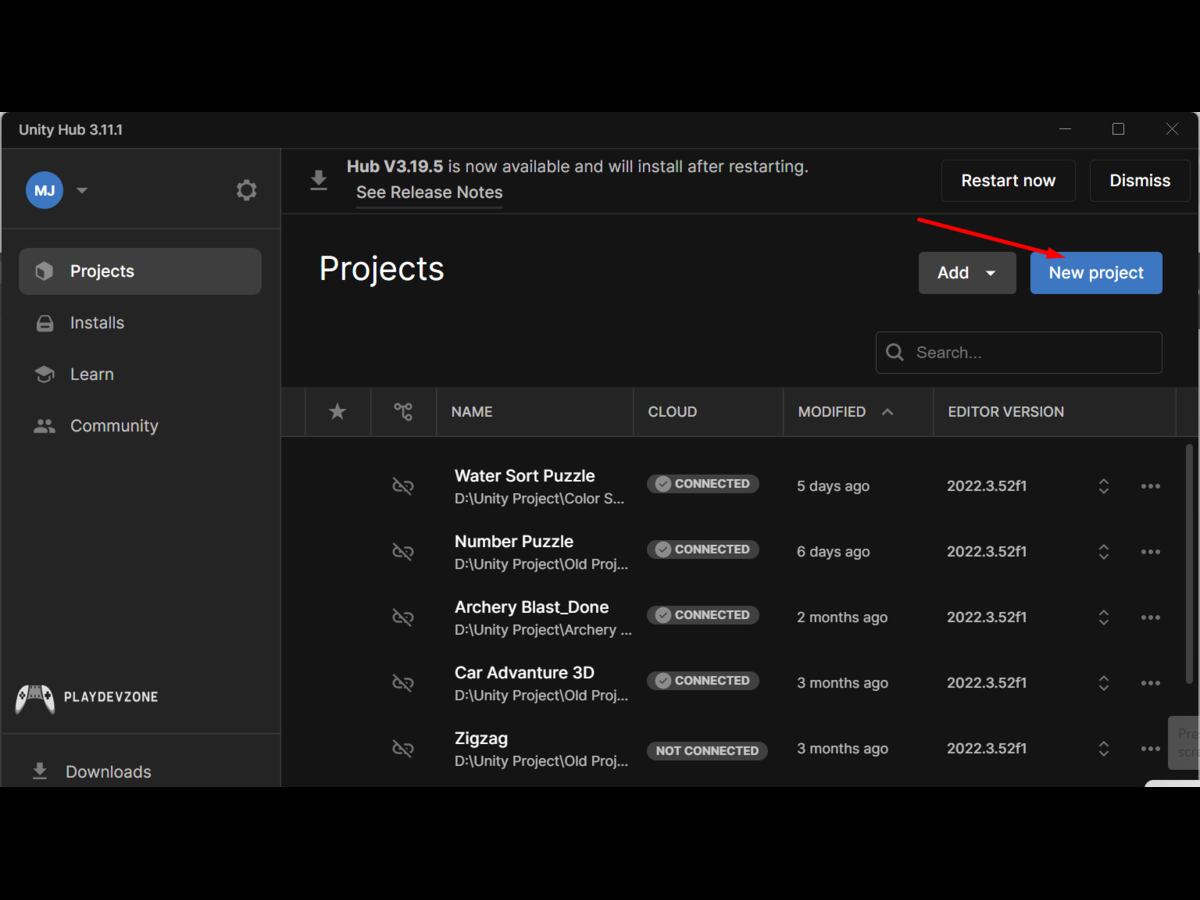
2. Create or Open a Unity Project
Open Unity Hub and either:
- Create a new 2D or 3D project.
- Open your existing mobile game project.
If you're creating a new game, choose the template that matches your project requirements.
3. Create a Unity Account
To use Unity Ads, you'll need a Unity account.
Your account allows you to:
- Access Unity Dashboard
- Manage Unity Gaming Services
- Create Game IDs
- Configure Advertisement Settings
- Track Revenue
- Monitor Analytics
4. Enable Unity Gaming Services
Modern Unity projects use Unity Gaming Services (UGS).
UGS allows you to manage:
- Advertisement
- Analytics
- Authentication
- Cloud Save
- Economy
- Remote Config
- Leaderboards
Connecting your project to Unity Gaming Services is one of the first steps toward successful Unity Ads monetization.
5. Internet Connection
Unity Ads communicates with Unity servers during:
Initialization
Testing
Loading Ads
Revenue Reporting
A stable internet connection is recommended while configuring and testing ads.
6. Supported Platforms
Unity Ads currently supports:
Platform
Android
iOS
Windows
macOS
Linux
Supported
Yes
Yes
No
No
No
Create Your Unity Dashboard Project
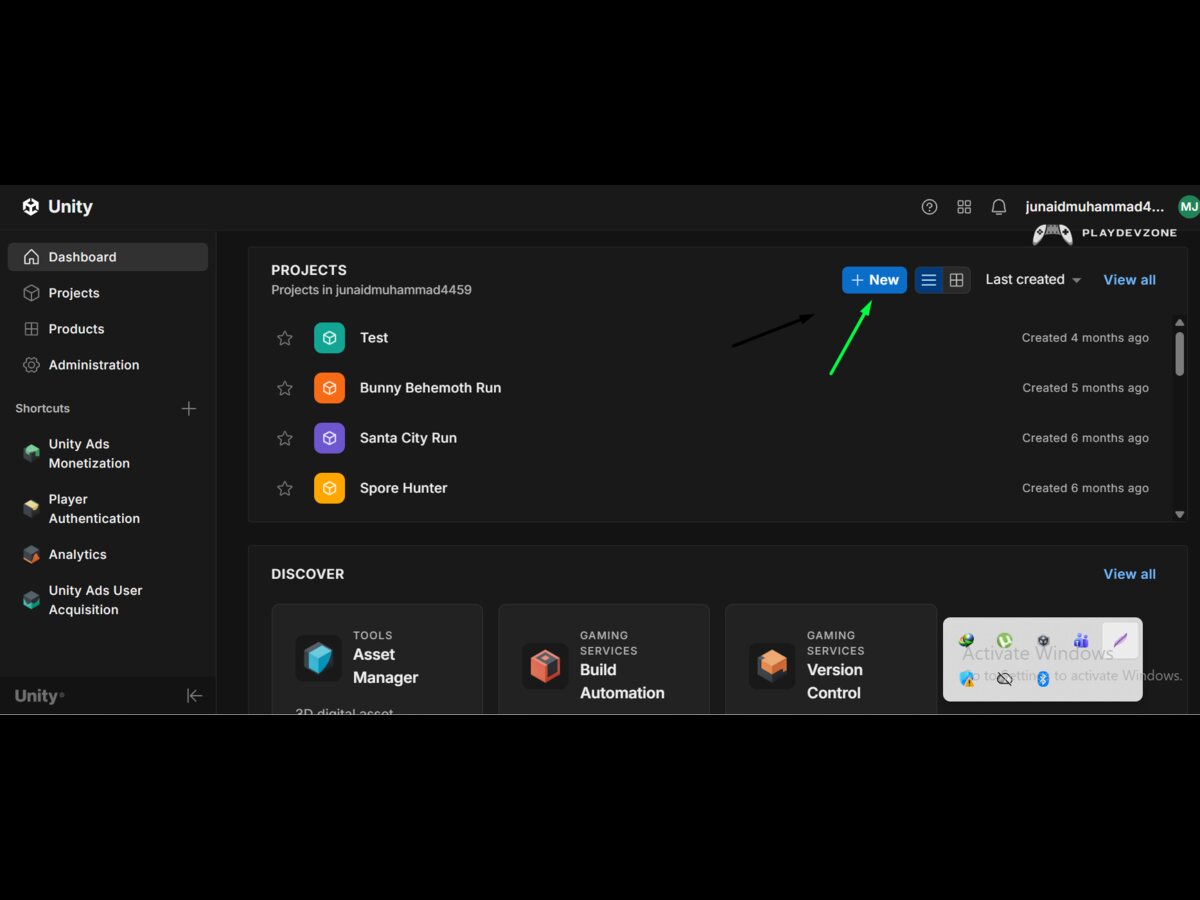
After preparing your Unity project, the next step is creating a project inside the Unity Dashboard.
This dashboard acts as the central control panel for your game's monetization.
Inside the dashboard, you can:
Register your game
Enable Ads
Generate Game IDs
Configure Ad Placements
View Revenue Reports
Analyze Player Data
Enable Test Mode
Keeping your Unity Dashboard properly configured ensures smooth communication between your game and Unity's advertising servers.
Connect Unity Gaming Services
Connecting Unity Gaming Services only takes a few minutes.
Step 1
Open your Unity project.
Step 2
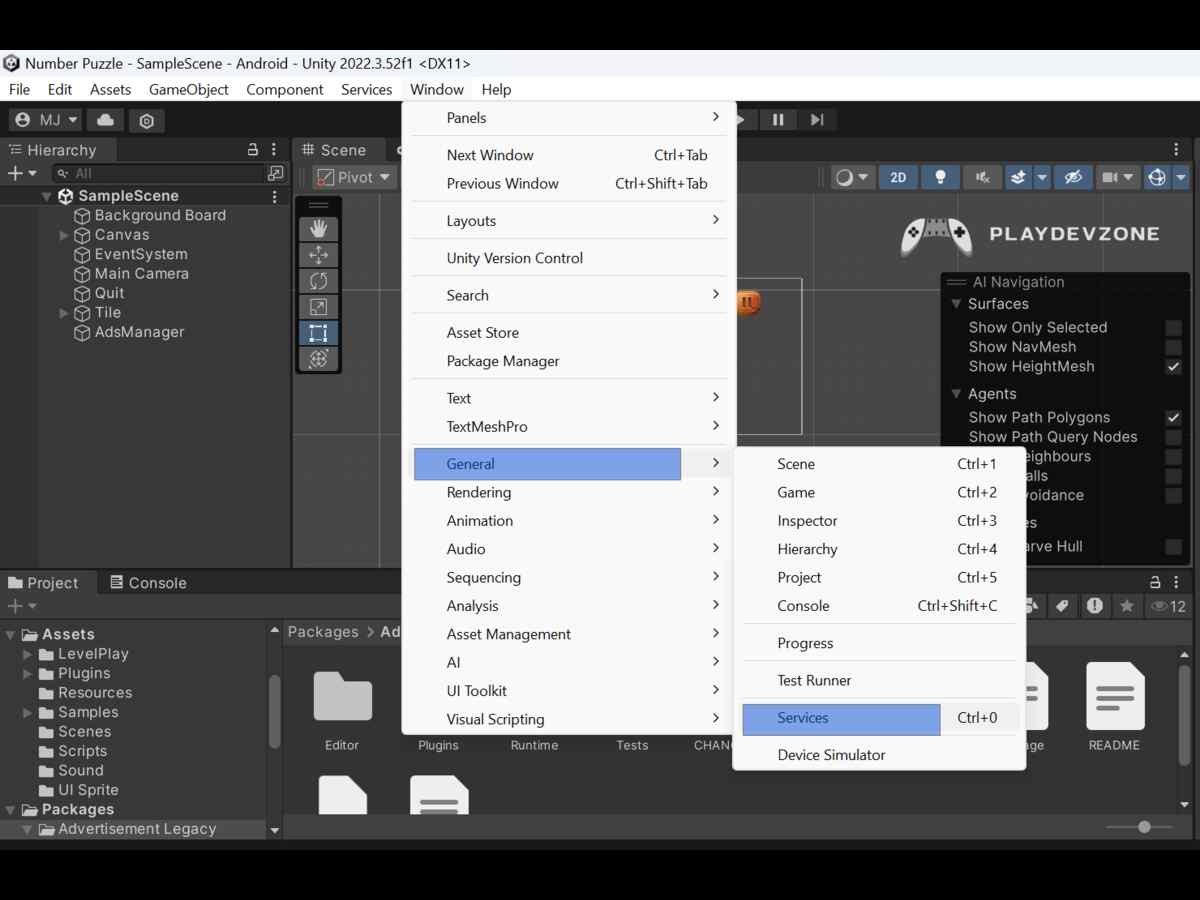
Navigate to:
Window → General → Services
or
Project Settings → Services
(depending on your Unity version).
Step 3
Sign in with your Unity account.
Step 4
Select your organization.
Step 5
Start a new Unity project from scratch or link an existing project to continue developing your game with the latest tools and settings.
After a few moments, Unity will automatically link your project with Unity Gaming Services.
Enable Advertisement Services
Once your project is connected to Unity Gaming Services:
Open
Unity Dashboard → Monetization → Advertisement
Enable Advertisement for your project.
Unity will automatically generate separate Game IDs for:
Android
iOS
These Game IDs are required during initialization.
Locate Your Game ID
Every Unity project receives unique Game IDs.
Example:
Android
iOS
1234567
7654321
Never mix Android and iOS Game IDs.
Using the wrong ID prevents ads from loading correctly.
Create Ad Placements
The next step is creating ad placements.
Common placement examples include:
Placement
Rewarded
Interstitial
Banner
Purpose
Reward videos
Between levels
Bottom or top UI
Meaningful placement names make your project easier to maintain as it grows.
Configure Test Mode
Never publish your game before testing ads.
Unity provides Test Mode so developers can verify:
Ads load correctly.
Rewards are granted.
No crashes occur.
Placements work as expected.
Testing prevents accidental policy violations and improves the overall player experience.
Common Setup Mistakes
Many beginners face issues during Unity Ads monetization because of small configuration mistakes.
Avoid these common problems:
Using the wrong Game ID.
Forgetting to connect Unity Gaming Services.
Disabling Advertisement Services.
Testing with production ads instead of Test Mode.
Importing incompatible SDK versions.
Missing Android Build Support or iOS Build Support.
Publishing without verifying ad placements.
Taking a few extra minutes to check these settings can save hours of troubleshooting later.
Rewarded Ads, Interstitial Ads, Banner Ads aur Unity Ads Initialization with C# code examples
Step 1: Install the Unity Advertisement Package
Before displaying ads, you need to install the Unity Advertisement package in your project. In Unity 6, this package is managed through the Package Manager.
Install the Advertisement Package
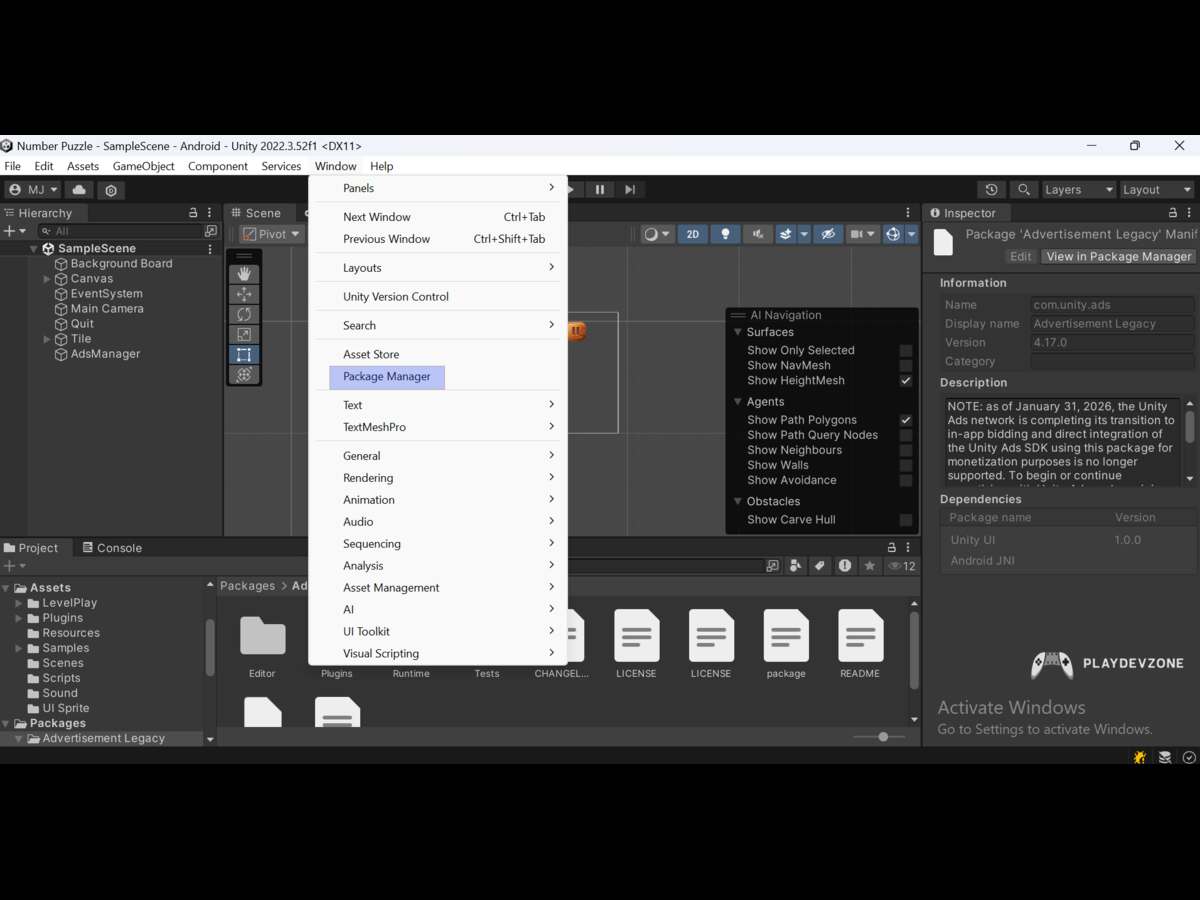
Open your Unity project.
Go to Window → Package Manager.
Select Unity Registry from the package source.
Search for Advertisement.
Click Install (or Update if an older version is installed).
Once installed, Unity automatically adds the required libraries needed for Unity Ads monetization.
Step 2: Initialize Unity Ads
Before showing any advertisements, Unity Ads must be initialized when your game starts.
Create a new C# script named AdsInitializer.cs and attach it to a GameObject in your first scene.
Example Initialization Script
using UnityEngine;
using UnityEngine.Advertisements;
public class AdsInitializer : MonoBehaviour, IUnityAdsInitializationListener
{
[SerializeField] private string androidGameId = "YOUR_ANDROID_GAME_ID";
[SerializeField] private string iosGameId = "YOUR_IOS_GAME_ID";
[SerializeField] private bool testMode = true;
private string gameId;
void Start()
{
#if UNITY_ANDROID
gameId = androidGameId;
#elif UNITY_IOS
gameId = iosGameId;
#endif
Advertisement.Initialize(gameId, testMode, this);
}
public void OnInitializationComplete()
{
Debug.Log("Unity Ads Initialization Complete.");
}
public void OnInitializationFailed(UnityAdsInitializationError error, string message)
{
Debug.Log("Initialization Failed: " + message);
}
}
Why Initialization Matters
Initialization establishes a secure connection between your game and Unity's advertising servers.
Without completing this step successfully, no rewarded, interstitial, or banner ads can be displayed.
Step 3: Implement Rewarded Ads
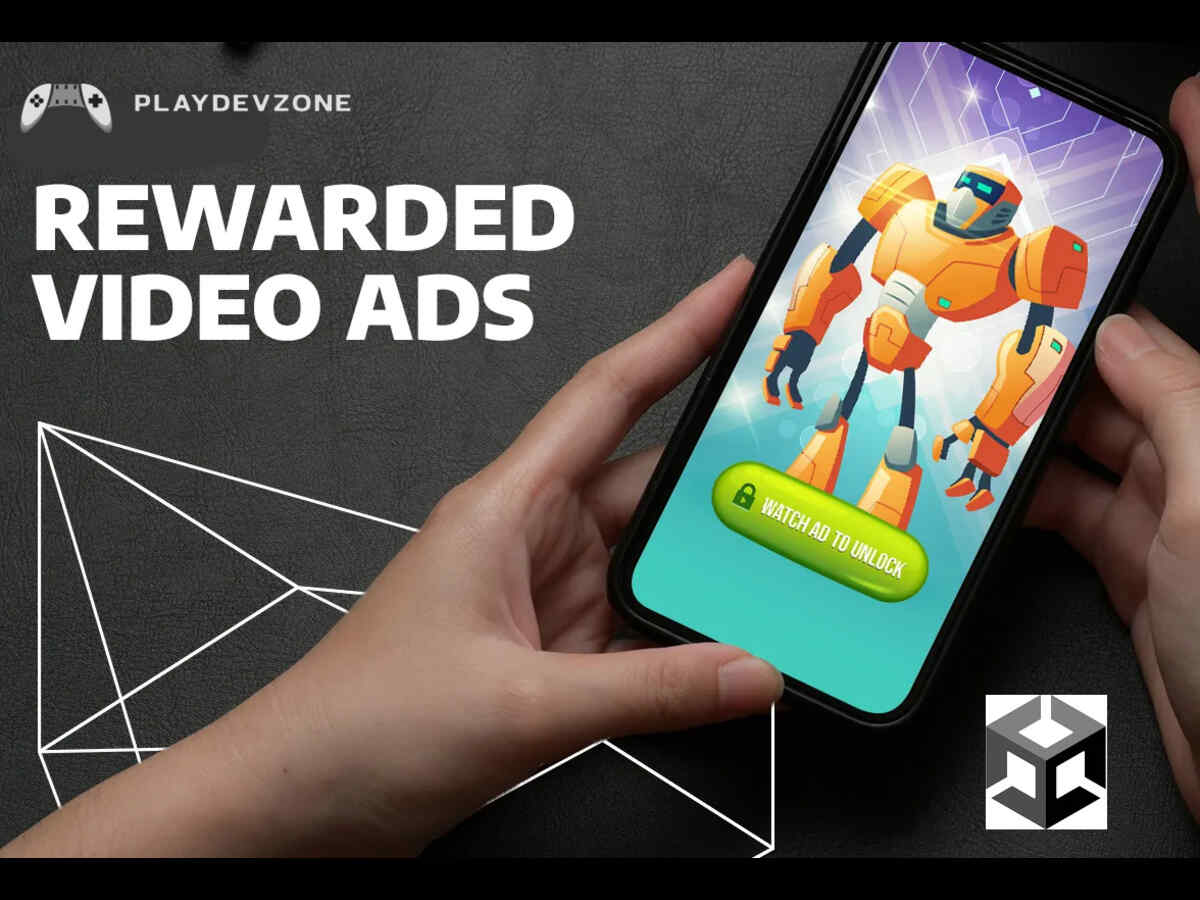
Rewarded Ads are considered the most profitable ad format in Unity Ads monetization because players voluntarily watch ads in exchange for valuable in-game rewards.
Typical rewards include:
* Extra Coins
* Free Gems
* Additional Lives
* Energy Refills
* Premium Chests
* Unlock New Characters
* Double Rewards
Since users choose to watch these ads, rewarded videos generally provide better engagement and higher retention compared to forced advertisements.
Create a Rewarded Ads Script
Create a new script named:
RewardedAds.cs
Example:
using UnityEngine;
using UnityEngine.Advertisements;
public class RewardedAds : MonoBehaviour
{
public void ShowRewardedAd()
{
if (Advertisement.isInitialized)
{
Advertisement.Show("Rewarded_Android");
}
}
}
Replace Rewarded_Android with the Placement ID created in your Unity Dashboard.
Best Time to Show Rewarded Ads
Replace Rewarded_Android with the Placement ID created in your Unity Dashboard.
Reward
Extra Life
Coins
Gems
Hint
Double Reward
Energy
Example
Continue after losing
Earn additional currency
Premium currency
Puzzle games
Double Reward
Energy
Never force users to watch rewarded ads. Giving players a choice improves satisfaction and long-term engagement.
Step 4: Implement Interstitial Ads
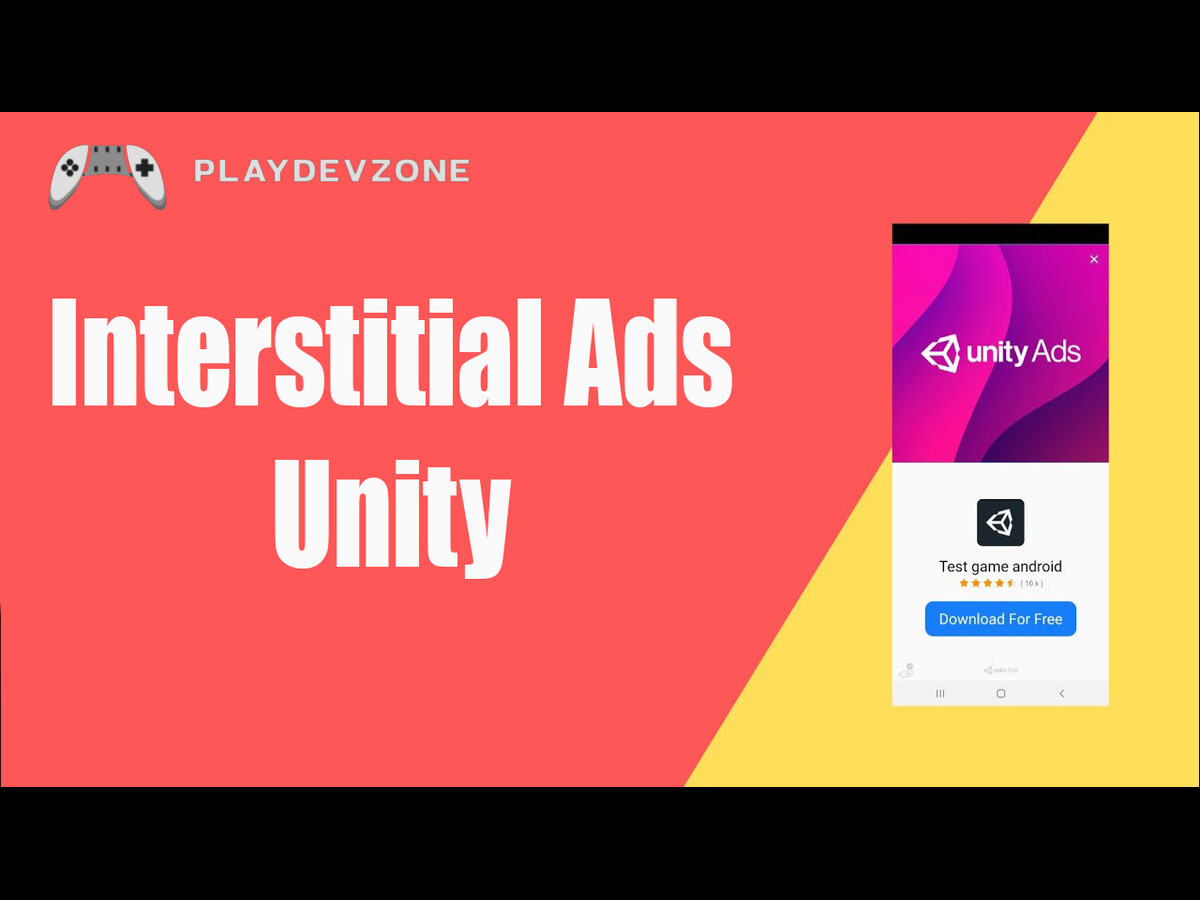
Interstitial Ads are full-screen advertisements displayed during natural pauses in gameplay.
Unlike rewarded ads, these are not optional, so they should be placed carefully to avoid disrupting the user experience.
Good placement examples include:
Between Levels
After Completing a Mission
During Loading Screens
After Game Over
Before Returning to the Main Menu
Avoid showing interstitial ads in the middle of active gameplay.
Example Interstitial Script
using UnityEngine;
using UnityEngine.Advertisements;
public class InterstitialAds : MonoBehaviour
{
public void ShowInterstitialAd()
{
if (Advertisement.isInitialized)
{
Advertisement.Show("Interstitial_Android");
}
}
}
Replace the placement name with the one configured in your Unity Dashboard.
Step 5: Implement Banner Ads
Banner Ads are small advertisements that remain visible while players continue playing.
Although banner ads generally generate lower revenue than rewarded videos, they provide consistent passive income when placed correctly.
Banner Ads are most effective in:
* Main Menu
* Pause Menu
* Settings Screen
* Store Screen
* Level Selection Screen
Avoid placing banners where they block gameplay controls or important UI elements.
Example Banner Script
using UnityEngine;
using UnityEngine.Advertisements;
public class BannerAds : MonoBehaviour
{
void Start()
{
Advertisement.Banner.SetPosition(BannerPosition.BOTTOM_CENTER);
Advertisement.Banner.Show("Banner_Android");
}
}
Which Ad Format Earns the Most?
Ad Format
Rewarded Ads
Interstitial Ads
Banner Ads
User Experience
Excellent
Good (if timed well)
Moderate
Best Use Case
Extra rewards
Between levels
Menus and store screens
For most games, rewarded ads provide the best balance between player satisfaction and revenue, while interstitial and banner ads can supplement your overall monetization strategy.
Step 6: Test Unity Ads Before Publishing
Before launching your game on the Google Play Store or Apple App Store, thoroughly test your Unity Ads integration.
Proper testing helps you identify issues early and ensures that ads load correctly without affecting gameplay.
Unity provides Test Mode, allowing developers to display test ads without generating invalid impressions or clicks.
How to Enable Test Mode
If you're using the initialization script from the previous section, simply keep:
[SerializeField] private bool testMode = true;
With Test Mode enabled, Unity serves test advertisements instead of live ads.
Important: Never publish your game with Test Mode enabled. Before releasing your game, change:
testMode = false;
Best Practices for Unity Ads Monetization
A successful Unity Ads monetization strategy is not about showing as many ads as possible. Instead, it focuses on balancing revenue with player satisfaction.
1. Prioritize Rewarded Ads
Rewarded Ads consistently deliver the highest engagement because players willingly watch them for in-game rewards.
Good examples include:
- Double Coins
- Free Gems
- Extra Life
- Unlock Chest
- Bonus Energy
Players appreciate having a choice, which leads to better retention and higher lifetime value.
2. Don’t Spam Interstitial Ads
One of the biggest mistakes developers make is showing too many interstitial ads.
Instead of displaying an ad after every action, place them at natural pauses such as:
Level Complete
Mission Complete
Game Over
Loading Screen
Avoid interrupting active gameplay.
4. Optimize Ad Frequency
Showing too many ads can reduce player retention.
A balanced approach is often more effective:
Rewarded Ads: Player-initiated
Interstitial Ads: After several completed levels
Banner Ads: Static menus only
This approach helps maximize long-term revenue.
5. Monitor Performance Regularly
The Unity Dashboard provides valuable insights such as:
- Fill Rate
- Impressions
- Revenue
- eCPM
- Ad Requests
- Player Engagement
Review these metrics regularly and adjust your ad placements based on actual performance.
Common Unity Ads Errors
Even experienced developers occasionally encounter problems during Unity Ads monetization. Most issues are easy to fix once you identify the cause.
Problem
Ads not loading
Initialization failed
Reward not granted
Banner not visible
No revenue
Build errors
Possible Cause
Wrong Game ID
Internet or Services
issue
Callback missing
Incorrect placement
Test Mode enabled
Missing package
Solution
Verify Android/iOS Game IDs
Check Unity Gaming Services connection
Verify reward logic after ad completion
Check Banner Placement ID
Disable Test Mode before publishing
Reinstall the Advertisement package
Expert Tips for Higher Earnings
Here are a few practical tips that can help improve your Unity Ads monetization results over time:
Focus on player experience first; satisfied players are more likely to engage with ads.
Keep your project updated with the latest Unity and Advertisement package versions.
Test different reward values to see which ones encourage the most engagement.
Use analytics data to refine your monetization strategy instead of relying on guesswork.
Which Platform Should You Choose?
Unity Ads is ideal for beginners and developers building games with the Unity Engine.
Google AdMob is a strong choice if you develop both games and general mobile apps.
Unity LevelPlay is better suited for developers who want advanced mediation, A/B testing, and access to multiple ad networks.
For most indie developers starting with Unity, Unity Ads monetization provides the simplest setup while delivering solid performance.
Pros and Cons of Unity Ads
Pros
Easy integration with Unity 6.
Built specifically for mobile games.
Excellent rewarded video support.
Supports Android and iOS.
Beginner-friendly setup.
Reliable analytics dashboard.
Good global advertiser coverage.
Native integration with Unity Gaming Services.
Cons
Revenue depends on player location.
Requires an active internet connection for ads.
Advanced mediation features are more limited than dedicated mediation platforms.
Incorrect ad placement can reduce player retention.
FAQ (Frequently Asked Questions)
What is Unity Ads monetization?
Unity Ads monetization is the process of earning revenue by displaying rewarded, interstitial, or banner advertisements inside Unity mobile games.
Is Unity Ads free to use?
Yes. Integrating Unity Ads is free. Unity earns revenue through its advertising network when ads are displayed.
Does Unity Ads support Unity 6?
Yes. Unity Ads is fully compatible with Unity 6 when configured through Unity Gaming Services.
Which platforms support Unity Ads?
Unity Ads supports:
Android
iOS
Which ad format generates the highest revenue?
Rewarded Ads generally generate the highest engagement and often deliver the best long-term monetization results because players voluntarily choose to watch them.
Can I use Unity Ads with Google AdMob?
Yes. Many developers combine Unity Ads with Google AdMob using mediation solutions to improve fill rates and overall revenue.
Do Banner Ads affect gameplay?
They can if placed poorly. Display banner ads in menus, shop screens, or pause screens rather than over active gameplay.
Conclusion
Implementing Unity Ads monetization is one of the most effective ways to generate sustainable revenue from your Unity mobile game.
With support for rewarded, interstitial, and banner ads, Unity provides a complete monetization solution that integrates seamlessly with Unity 6 and Unity Gaming Services.
However, successful monetization is about more than simply displaying advertisements.
Rewarded ads should offer meaningful in-game value, interstitial ads should appear only during natural pauses, and banner ads should remain unobtrusive.
By following the setup process, testing thoroughly, monitoring analytics, and continuously refining your ad strategy, you can maximize earnings without compromising user satisfaction.
Whether you're launching your first indie project or scaling an established mobile game, a well-planned Unity Ads monetization strategy can help turn your game into a reliable source of long-term revenue.