
Introduction
Multiplayer games have become one of the most popular genres in modern game development ( Unity 6 Multiplayer Animation Sync ).
Whether you're creating a competitive shooter, a cooperative survival game, or a multiplayer RPG, one critical feature that directly affects the player experience is animation synchronization.
If animations are not synchronized correctly, players may see characters sliding across the ground, attacking without proper animation, or jumping at the wrong time.
These issues can quickly make a multiplayer game feel unpolished and unreliable.
Fortunately, Unity 6 provides powerful tools that make multiplayer development easier than ever.
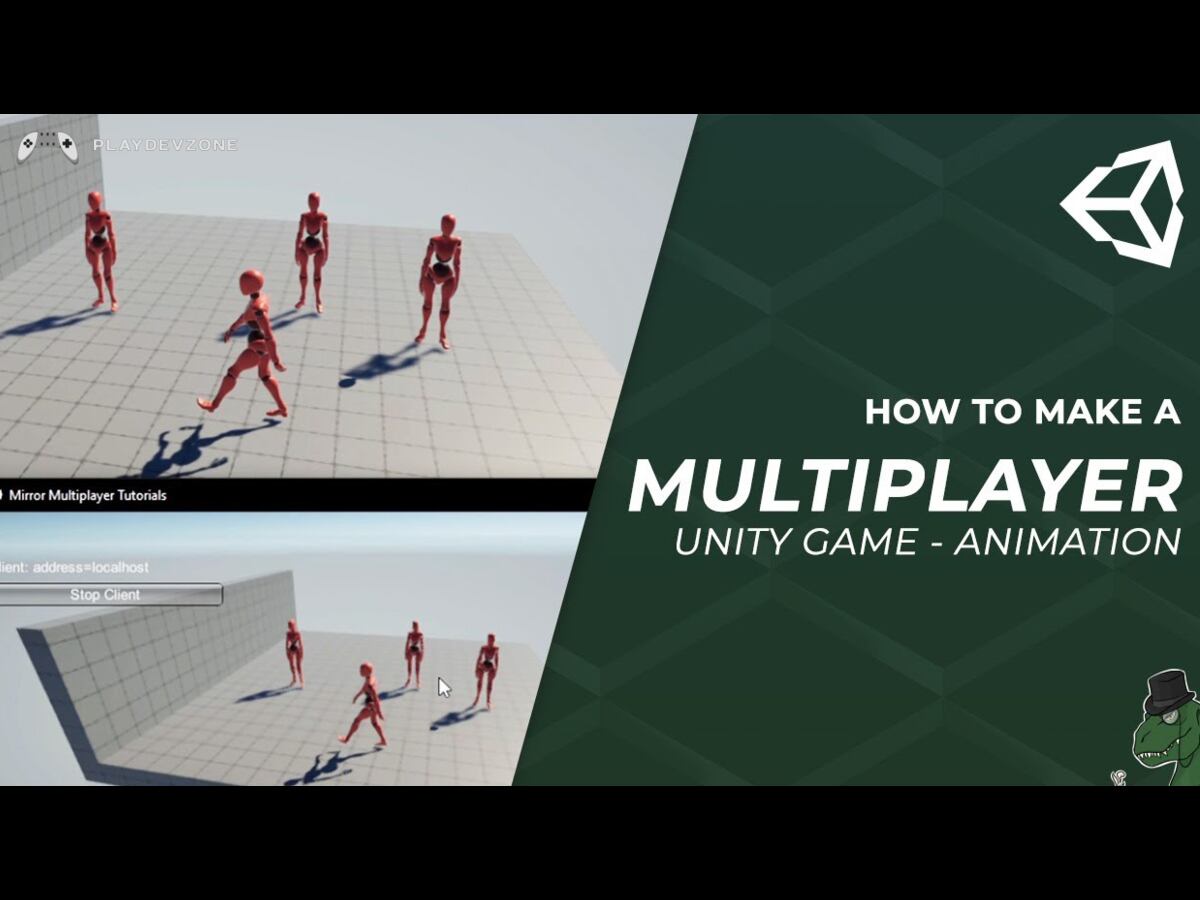
When combined with Netcode for GameObjects, developers can efficiently synchronize animations across connected players and ensure everyone sees the same actions in real time.
In this comprehensive Unity 6 Multiplayer Animation Sync Tutorial, you'll learn how multiplayer animation synchronization works, why it's important, and how to implement it step by step.
We'll cover Animator Controllers, Network Variables, ownership rules, optimization techniques, and best practices for creating smooth and responsive multiplayer character animations.
By the end of this tutorial, you'll have a solid understanding of how to synchronize running, walking, jumping, attacking, and other character animations across the network while maintaining excellent performance.
What Is Multiplayer Animation Synchronization?
Animation synchronization is the process of ensuring that character animations are displayed consistently across all connected players in a multiplayer game.
For example:
* Player A presses the jump button ( Unity 6 Multiplayer Animation Sync ).
* The jump animation plays locally.
* The server receives the action.
* The server distributes the updated information to every connected client.
* Every connected player sees the jump animation.
Without synchronization, only the local player would see the correct animation while other players might see the character standing still or moving incorrectly.
Animation synchronization is important because it:
* Improves gameplay clarity
* Creates a realistic multiplayer experience
* Reduces visual inconsistencies ( Unity 6 Multiplayer Animation Sync )
* Enhances player immersion
* Makes combat interactions easier to understand
Why Animation Sync Matters in Unity 6 Multiplayer Games
Many new developers focus heavily on player movement synchronization while overlooking animation synchronization.
Imagine a multiplayer shooting game where:
Movement is synchronized.
Position updates work correctly.
Shooting logic functions properly.
However:
Reload animations don't play.
Jumping animations are missing ( Unity 6 Multiplayer Animation Sync ).
Running animations appear delayed.
The game would feel broken despite having functional gameplay mechanics.
Proper animation synchronization ensures:
Better Player Feedback
Players immediately understand what other players are doing.
Improved Combat Accuracy
Attack and damage animations appear at the right moment.
Professional Presentation
Smooth animations make your game feel polished and complete.
Enhanced User Experience ( Unity 6 Multiplayer Animation Sync )
Players can trust what they see on screen.
Prerequisites
Before starting this tutorial, ensure you have:
Software Requirements
Unity 6 installed
Visual Studio
Unity Hub
Knowledge Requirements
Basic C# programming
Understanding of Unity Animator
Familiarity with GameObjects
Basic networking concepts
Required Packages
Install:
Netcode for GameObjects ( Unity 6 Multiplayer Animation Sync )
Unity Transport Package
These packages provide the networking foundation needed for animation synchronization.
Step 1: Create Your Character and Animations
The first step is creating a character with animations.
Most multiplayer characters use animations such as:
Idle
Walk
Run
Jump
Attack
Death ( Unity 6 Multiplayer Animation Sync )
Crouch
Import your character model into Unity and add animation clips.
A clean animation setup makes synchronization significantly easier later.
Step 2: Create an Animator Controller
Create a new Animator Controller and assign it to your player.
Example Animation States
Idle → Walk → Run → Jump → Attack
Add parameters that control transitions.
Recommended parameters:
Parameter Type
Speed Float
IsJumping Bool
IsAttacking Bool
IsDead Bool
These parameters will eventually be synchronized over the network.
Creating Speed Transitions
Configure conditions:
Idle → Walk
Speed > 0.1
Walk → Run
Speed > 4
Run → Idle
Speed < 0.1
This setup allows smooth transitions based on movement speed.
Step 3: Install Netcode for GameObjects
Open:
Window → Package Manager
Search for:
Netcode for GameObjects
Install the package.
Next install:
Unity Transport
These packages allow communication between clients and servers.
Step 4: Configure the Multiplayer Player Object
Select your Player GameObject.
Add these components:
NetworkObject ( Unity 6 Multiplayer Animation Sync )
This identifies the object on the network ( Unity 6 Multiplayer Animation Sync ).
NetworkTransform
Synchronizes:
Position
Rotation
Scale
Animator
Controls character animations.
Character Controller
Handles movement logic.
Your hierarchy should look similar to:
Player
NetworkObject
NetworkTransform
Animator
Character Controller
This forms the foundation of your multiplayer character.
Step 5: Understanding Ownership
Ownership is one of the most important networking concepts.
In multiplayer games:
Each player owns their character.
The owner controls animation updates.
Other clients receive synchronized data ( Unity 6 Multiplayer Animation Sync ).
Unity Netcode provides:
if (IsOwner)
{
// Local player logic
}
Only the owner should send animation updates.
This prevents conflicts between multiple clients.
Step 6: Create an Animation Sync Script
Create a script called:
PlayerAnimationSync.cs
Attach it to your player object.
Basic setup:
using UnityEngine;
using Unity.Netcode;
public class PlayerAnimationSync : NetworkBehaviour
{
private Animator animator;
private void Start()
{
animator = GetComponent<Animator>();
}
}
This script will manage synchronized animation states.
Step 7: Synchronize Movement Animations
Movement is usually the first animation state that developers synchronize.
Create a Network Variable:
public NetworkVariable<float> Speed =
new NetworkVariable<float>();
Update it for the owning player:
if (IsOwner)
{
Speed.Value =
Mathf.Abs(Input.GetAxis("Vertical"));
}
Apply it to the Animator:
animator.SetFloat(
"Speed",
Speed.Value
);
Now all clients receive the updated movement speed.
As a result:
Walking animations synchronize
Running animations synchronize ( Unity 6 Multiplayer Animation Sync )
Idle states synchronize
across every connected player ( Unity 6 Multiplayer Animation Sync ).
Step 8: Synchronize Jump Animations
Jumping is another important multiplayer action.
Create a new variable:
public NetworkVariable<bool> IsJumping =
new NetworkVariable<bool>();
When the player jumps:
if(Input.GetKeyDown(KeyCode.Space))
{
IsJumping.Value = true;
}
Update the Animator:
animator.SetBool(
"IsJumping",
Is jumping.Value
);
When landing:
IsJumping.Value = false;
Every client now sees the jump animation correctly.
Step 9: Synchronize Attack Animations
Combat animations are critical for multiplayer gameplay.
Create:
public NetworkVariable IsAttacking =
new NetworkVariable();
When attacking:
if(Input.GetMouseButtonDown(0))
{
IsAttacking.Value = true;
}
Apply to Animator:
animator.SetBool(
"IsAttacking",
IsAttacking.Value
);
Reset after the animation finishes ( Unity 6 Multiplayer Animation Sync ).
This ensures all players can clearly see combat actions ( Unity 6 Multiplayer Animation Sync ).
Step 10: Synchronizing Death Animations
Death animations are often overlooked but extremely important.
Create:
public NetworkVariable IsDead =
new NetworkVariable();
When health reaches zero:
IsDead.Value = true;
Update Animator:
animator.SetBool(
"IsDead",
Is dead.Value
);
This guarantees all players see the death sequence correctly.
Using RPCs for Animation Events
Some animations should be triggered only once.
Examples include:
Reload
Attack
Emotes
Special abilities
For these situations, RPCs are useful.
Example:
[Rpc(SendTo.Server)]
public void AttackRpc()
{
}
RPCs help synchronize one-time animation events efficiently.
Common Multiplayer Animation Problems
Animation Not Playing on Other Clients
Possible causes:
Missing NetworkObject
Ownership issues ( Unity 6 Multiplayer Animation Sync )
Network Variable not updating ( Unity 6 Multiplayer Animation Sync )
Animation Delays
Possible causes:
High latency
Excessive network traffic
Server bottlenecks
Characters Sliding
Possible causes:
Speed parameter not synchronized
Animator transitions are configured incorrectly
Attack Animation Missing
Possible causes:
RPC not firing
Incorrect Animator parameter names ( Unity 6 Multiplayer Animation Sync )
Regular testing helps identify these problems early.
FAQ (Frequently Asked Questions)
What is multiplayer animation synchronization in Unity 6?
Multiplayer animation synchronization in Unity 6 ensures that all connected players see the same character animations at the same time.
Actions such as running, jumping, attacking, and dying are shared across the network using Unity Netcode ( Unity 6 Multiplayer Animation Sync ).
Proper animation syncing prevents visual inconsistencies and makes multiplayer gameplay feel smooth and professional.
It is an essential feature for online games because players rely on accurate animations to understand what other players are doing during gameplay.
How do I sync player animations in Unity 6 multiplayer?
To sync player animations in Unity 6 multiplayer, add a NetworkObject component to the player, use an Animator Controller, and synchronize animation parameters through Network Variables or RPCs.
The owning client updates values such as movement speed, jump state, and attack state, while other clients receive the updates automatically.
This method ensures that every connected player sees the correct animation state without manually updating animations on each client ( Unity 6 Multiplayer Animation Sync ).
What is the best way to synchronize animations in Unity multiplayer games?
The best way to synchronize animations in Unity multiplayer games is to use state-based synchronization with Network Variables ( Unity 6 Multiplayer Animation Sync ).
Instead of sending many animation parameters continuously, send a small state ID such as Idle, Run, Jump, or Attack.
This approach reduces bandwidth usage, improves performance, and keeps animations consistent across all clients.
Many professional multiplayer games use state-based animation syncing because it is efficient, scalable, and easier to maintain ( Unity 6 Multiplayer Animation Sync ).
Why are my multiplayer animations not showing on other clients?
If multiplayer animations are not showing on other clients, the most common causes are missing NetworkObject components, incorrect ownership logic, or animation parameters not being synchronized.
Make sure only the owning client updates the animation data and that other clients read the synchronized values ( Unity 6 Multiplayer Animation Sync ).
Also, verify that the Animator parameter names match the code exactly.
Should I use RPCs or Network Variables for animation synchronization?
Use Network Variables for continuous animation states such as movement, running, and jumping because they automatically stay synchronized over time.
Use RPCs for one-time actions such as attacks, reloads, emotes, or special abilities. Combining both methods usually provides the best results in Unity 6 multiplayer games ( Unity 6 Multiplayer Animation Sync ).
This approach keeps network traffic low while ensuring important animation events are delivered correctly to every connected player.
How can I reduce animation sync lag in Unity 6 multiplayer?
To reduce animation sync lag in Unity 6 multiplayer, synchronize only essential animation states, send updates only when values change, and avoid excessive network traffic ( Unity 6 Multiplayer Animation Sync ).
Using state IDs instead of many separate parameters can also improve performance. Testing under realistic latency conditions helps identify bottlenecks.
Optimizing Animator Controllers and minimizing unnecessary RPC calls are additional ways to achieve smoother animation synchronization in online multiplayer games ( Unity 6 Multiplayer Animation Sync ).
Conclusion
Multiplayer animation synchronization is a vital part of creating professional multiplayer games in Unity 6. While movement synchronization ensures players appear in the correct location, animation synchronization ensures they look natural and responsive to everyone in the game session.
By using Unity 6, Netcode for GameObjects, Network Variables, Animator parameters, and RPCs, developers can create smooth multiplayer experiences where walking, running, jumping, attacking, and death animations are accurately displayed across all clients ( Unity 6 Multiplayer Animation Sync ).
Following the techniques covered in this Unity 6 Multiplayer Animation Sync Tutorial will help you build reliable, scalable, and visually polished multiplayer games that provide a better experience for players and improve the overall quality of your project.