
Introduction
If you want to learn game development but do not know where to begin, Unity is a practical place to start.
A good Unity Tutorial for Beginners shouldn't just show where buttons are; it should help you understand how a real Unity project is organized, how scenes and GameObjects work, how scripts control gameplay, and how to build a small project from start to finish.
What Is Unity?
Unity is a game engine and development platform used to create 2D and 3D games and interactive experiences.
It provides tools for scenes, GameObjects, physics, animation, audio, user interfaces, scripting, lighting, asset management, and building projects for multiple platforms.
For a beginner, the biggest advantage is that you can learn many parts of game development inside one editor.
Instead of using one program for level design, another for scripting, and another for building the project, Unity brings the core workflow together.
For absolute beginners, Unity Tutorial for Beginners can serve as a practical roadmap from installation to a playable prototype.
Is Unity Good for Beginners?
Yes. Unity is beginner-friendly when you learn it in a structured way. The editor has many features, but you only need a small set of them to build your first game.
The official Unity ecosystem also provides beginner learning resources, documentation, samples, and tutorials.
Unity currently provides the Unity 6 family of releases, including Unity 6.3 LTS, so new learners should pay attention to the editor version used by a tutorial before following its steps.
A well-structured Unity Tutorial for Beginners also helps you avoid jumping between unrelated lessons.
For someone starting a Unity Tutorial for Beginners, the goal should not be to memorize the entire interface. Instead, learn the basic workflow:
- Create a project.
- Understand the Editor.
- Create GameObjects.
- Add components.
- Create a simple C# script.
- Test the game.
- Fix errors.
- Build the project.
That sequence gives you a foundation you can reuse in future projects.
How to Install Unity Hub
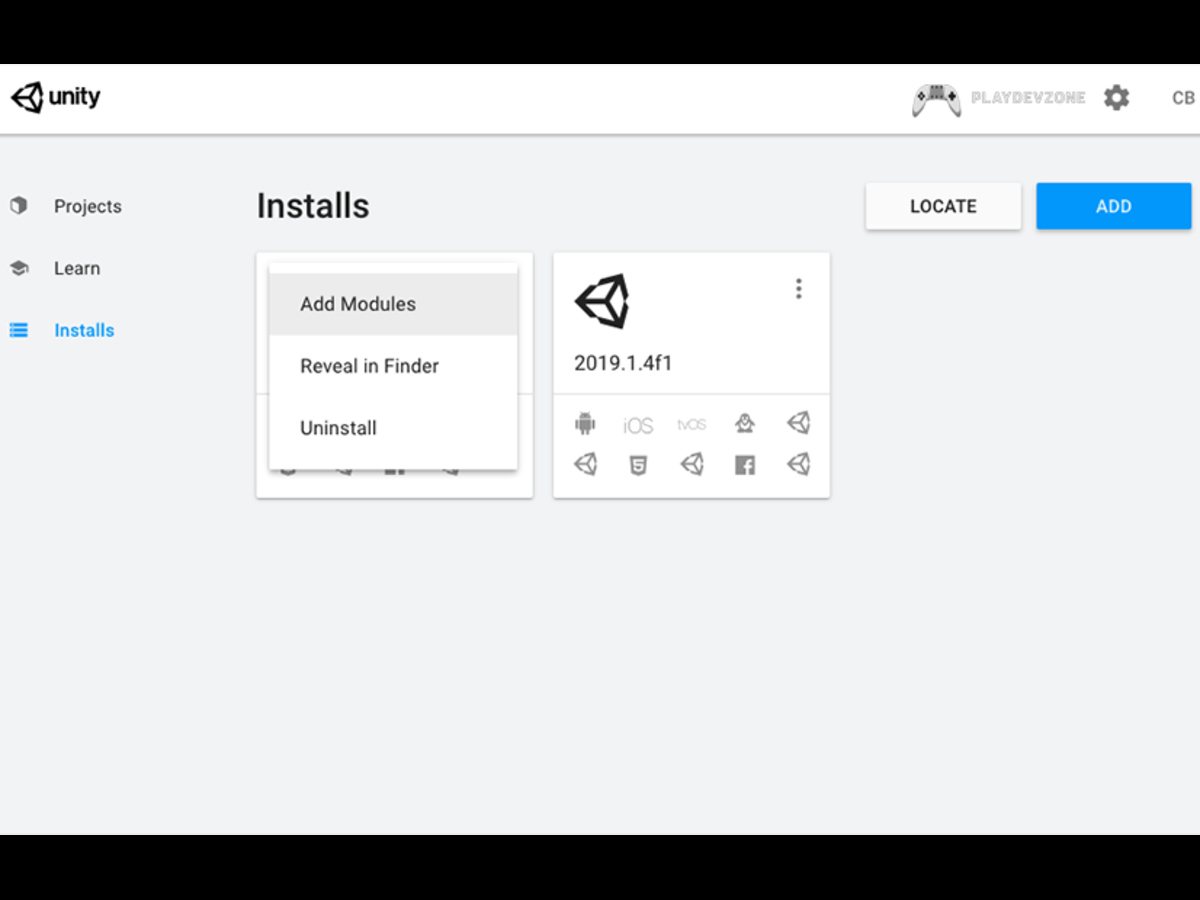
Unity Hub is the application used to manage Unity Editor installations and projects.
Download the current Unity Hub from Unity's official website, install it for your operating system, and sign in or create a Unity account.
After opening the Hub, use the option to install an Editor version. If you are following a tutorial, check which Unity version it uses. If the tutorial was written for an older release, some menus, packages, or workflows may look different.
Before starting a Unity Tutorial for Beginners, always confirm that the Editor version matches the steps you plan to follow.
For a beginner following a Unity Tutorial for Beginners, using a supported LTS release can make learning easier because your tutorial and installed editor are less likely to disagree about basic steps.
After installing the Editor, create your first project through Unity Hub. Choose a suitable template, enter a project name, select a safe folder location, and create the project.
Understanding the Unity Editor
When Unity opens, the interface may look complicated. Focus on the areas you will use most often.
The Scene view is where you work on your game world. You can move around the scene, select objects, position them, rotate them, and scale them.
The Game view shows what the player sees when the game runs. Use it frequently to check whether your scene behaves as expected.
The Hierarchy lists the GameObjects currently in your scene. It is useful for finding objects and understanding how they are organized.
The Inspector shows the components and properties of the selected GameObject. This is one of the most important areas for beginners because it lets you change object settings without writing code for everything.
The Project window contains your assets, scenes, scripts, materials, prefabs, and other project files.
The Console displays messages, warnings, and errors. Learning to read the Console is an essential skill in any Unity Tutorial for Beginners because errors are a normal part of development.
The early lessons in a Unity Tutorial for Beginners should introduce these panels gradually instead of overwhelming you with every option.
Learn GameObjects and Components
A GameObject is one of the fundamental objects in a Unity scene. It can represent anything in your game, such as a character, enemy, camera, light, environment object, or other interactive element.
It can represent a player, enemy, camera, light, environment object, UI element, or many other things.
GameObjects become useful through components. For example, a player might have a Transform, a visual component, a collider, a Rigidbody, and a custom movement script.
The Transform component controls position, rotation, and scale. Other components add behavior or functionality.
This component-based approach is one of the most important ideas in Unity. If you understand it early, many tutorials become easier to follow.
When starting a Unity Tutorial for Beginners, spend time creating simple objects and changing their components. Move them around, change their scale, add colliders, and test what happens when you press Play.
Create Your First Scene
A scene can represent a level, menu, loading screen, test environment, or another part of your game.
For your first project, create a simple scene rather than a large level. Add a floor, a camera, a light, and one player object. Then press Play and observe the result.
Save your scene with a clear name such as MainScene. Keep your project organized from the beginning.
You can create folders for Scenes, Scripts, Materials, Prefabs, Audio, UI, and other assets as your project grows.
Good organization may seem unimportant during a beginner project, but it becomes extremely valuable when your game contains hundreds of files.
Even a short Unity Tutorial for Beginners becomes easier to follow when every new scene change has a clear purpose.
Learn Basic C# Scripting
C# is one of the core programming languages used with Unity. You do not need to become an expert before making your first game.
Start with a simple script. Learn what a class is, how variables store information, how methods perform actions, and how Unity calls common lifecycle methods.
For example, a beginner script might move an object, change a score, respond to input, or detect a collision.
The important lesson in a Unity Tutorial for Beginners is not to copy code without understanding it. Read each line and ask what it does. Then change one part of the script and test the result.
If a tutorial gives you a complete script, try rebuilding a smaller version yourself afterward. This turns passive watching into active learning.
A practical Unity Tutorial for Beginners should connect each C# concept to something visible inside the game.
Add Player Movement
Player movement is one of the best first practical systems because it teaches input, variables, movement logic, and testing.
Start with a simple goal: move a character left and right, or move a player around a small 3D area.
Your initial controller only needs to teach you how input becomes movement.
Once basic movement works, you can learn jumping, gravity, camera control, sprinting, animation, and other features one at a time.
Use the movement example in your Unity Tutorial for Beginners as a foundation, then experiment with small changes.
A beginner-friendly Unity Tutorial for Beginners should build complexity gradually. Adding ten systems at once makes it difficult to know which change caused a problem.
Add Collisions and Physics
Physics allows objects to interact in ways that feel physical. Unity provides components such as colliders and Rigidbody-based workflows for many common gameplay situations.
Create a simple test scene with a floor and a movable object. Add the required components, press Play, and observe how the object behaves.
Then experiment with collision detection. For example, you can make the player collect an item, trigger a door, or reach a finish area.
This part of a Unity Tutorial for Beginners is especially useful because it turns theory into immediate gameplay feedback.
Build a Simple Game Loop
A complete game does not need dozens of mechanics. A simple game loop can be enough for your first project.
A basic loop might be:
Start → Move → Avoid or collect → Reach goal → Win or lose → Restart
For example, create a small game where the player moves through a level, collects three items, and reaches an exit.
You can then add a score, timer, health system, or simple UI.
This is where a Unity Tutorial for Beginners becomes more valuable than a collection of disconnected tutorials: you are learning how separate Unity features work together inside one project.
Create a Simple UI
A game usually needs some form of user interface. Beginners can start with a few basic elements such as a score label, health display, title, pause button, or game-over message.
Do not try to design a complex menu system immediately. Create one piece of UI, connect it to a simple gameplay value, and test it.
For example, when the player collects an item, increase a score variable and update the score display.
This teaches an important development pattern: gameplay data changes, and the user interface reflects that change.
Keep the UI example in your Unity Tutorial for Beginners simple enough that you can understand the connection between code and screen elements.
Learn Prefabs
Prefabs help you reuse GameObjects and their components.
Instead of manually rebuilding the same enemy, collectible, bullet, or environment object every time, you can create a reusable prefab.
Imagine that your game contains twenty identical coins. A prefab workflow allows you to create the coin once and place multiple copies into the scene.
Learning prefabs is an important milestone in any Unity Tutorial for Beginners because it moves you from experimenting with individual objects toward building reusable game systems.
Once you understand this workflow, the rest of your Unity Tutorial for Beginners can move toward reusable game systems.
Learn Debugging
Beginners sometimes think errors mean they are bad at programming. In reality, debugging is a normal part of development.
When something does not work, check the Console first. Read the error message carefully. Look at the script and identify the line the error mentions.
Then ask:
- Did I spell the variable or method correctly?
- Is the required component attached?
- Is a reference missing?
- Did I save the script?
- Is the correct GameObject selected?
- Did I change a setting that affects the behavior?
A strong Unity Tutorial for Beginners should teach debugging instead of pretending that every example will work perfectly on the first attempt.
Common Mistakes Beginners Should Avoid
Starting with a huge game
Keep your first game small and manageable so you can complete it successfully.
A simple project allows you to focus on learning game development without getting overwhelmed by a large or complicated idea.
Finishing a simple game teaches more than abandoning a massive project.
Copying tutorials without understanding
Following instructions is useful, but you should understand why each step is needed.
Ignoring C#
Visual tools can help with some workflows, but basic C# knowledge gives you much greater control over gameplay logic.
Keeping a messy project
Use clear names and folders from the beginning. Organization saves time later.
Skipping testing
Press Play frequently. Test one feature at a time instead of waiting until the entire project is finished.
Changing too many things at once
If you change movement, physics, UI, and enemy logic at the same time and something breaks, you will not know which change caused the problem.
Is Unity Free for Beginners?
Unity Personal is available at no cost for eligible individuals and small organizations under Unity's current financial threshold.
Unity's current terms set the Personal eligibility threshold at less than $200,000 USD in revenue or funding over the relevant 12-month period.
That makes Unity accessible for many people who are learning, experimenting, or developing small projects.
However, you should always check Unity's current licensing and plan requirements before releasing a commercial project.
For a beginner Unity Tutorial for Beginners, the important point is that you can start learning without immediately paying for a professional subscription.
Unity vs Unreal Engine for Beginners
Unity and Unreal Engine are both powerful choices, but they have different strengths and workflows.
Unity can be a great choice for beginners interested in learning C#, developing games for multiple platforms, and accessing a large collection of tutorials, assets, and community resources.
Unreal Engine is well known for high-end 3D graphics and offers visual scripting through Blueprints alongside C++.
Neither engine is automatically the best choice for every developer. Your target platform, preferred programming language, project type, computer hardware, and learning style all matter.
If you want a relatively straightforward introduction to scripting and a flexible environment for 2D, 3D, and mobile development, Unity is a strong option.
Frequently Asked Questions
Can I learn Unity without coding experience?
Yes. You can begin without programming experience.
However, learning basic C# will make it much easier to create custom gameplay systems and understand how Unity projects work.
Is Unity difficult to learn?
Unity has a lot of features, so the interface can feel overwhelming at first.
It becomes much easier when you learn a small set of concepts and apply them to a simple project.
How long does it take to learn Unity?
There is no fixed timeline. A motivated beginner can learn the fundamentals in a few weeks with regular practice.
Becoming comfortable with larger systems, optimization, architecture, animation, networking, and advanced graphics takes much longer.
Should I learn C# before Unity?
You do not need to master C# first. Learn basic C# alongside Unity.
This lets you immediately see how programming concepts affect a real game.
Can I learn Unity by myself?
Absolutely. A combination of official learning resources, documentation, practical projects, and consistent testing can take you a long way.
The key is to build things instead of only watching tutorials.
Can I make mobile games with Unity?
Yes. Unity supports mobile development, and its multiplatform workflow makes it possible to develop games for different target devices.
Always check the current platform requirements and build documentation for your chosen target.
Conclusion
Use this Unity Tutorial for Beginners as your starting point and keep building small projects.
Learning game development becomes much easier when you stop trying to learn everything at once.
Use this Unity Tutorial for Beginners as a practical starting point, then tailor your learning path to the kinds of games you want to create.
Begin by familiarizing yourself with the Unity Editor, then learn how GameObjects and components work.
From there, build a foundation in basic C#, create a simple game loop, and practice debugging common issues.
You do not need a huge idea, advanced graphics, or years of programming experience to begin.
You need a small project, regular practice, and the willingness to solve problems when things do not work.
Start with something you can finish. After completing your first game, start a new project and introduce one new skill or feature.
This approach helps you gradually expand your game development knowledge and build confidence with each project.
Over time, these small projects will build the knowledge you need to create more ambitious games with Unity.