
Introduction
If you want to learn game development and create your first 2D platformer game, Godot 4 is one of the best game engines available today ( Godot 4 Beginner Platformer Tutorial ).
It is free, open-source, lightweight, and packed with professional features that help beginners and experienced developers build games efficiently.
In this Godot 4 Beginner Platformer Tutorial, you will learn how to create a simple yet functional platformer game from scratch.
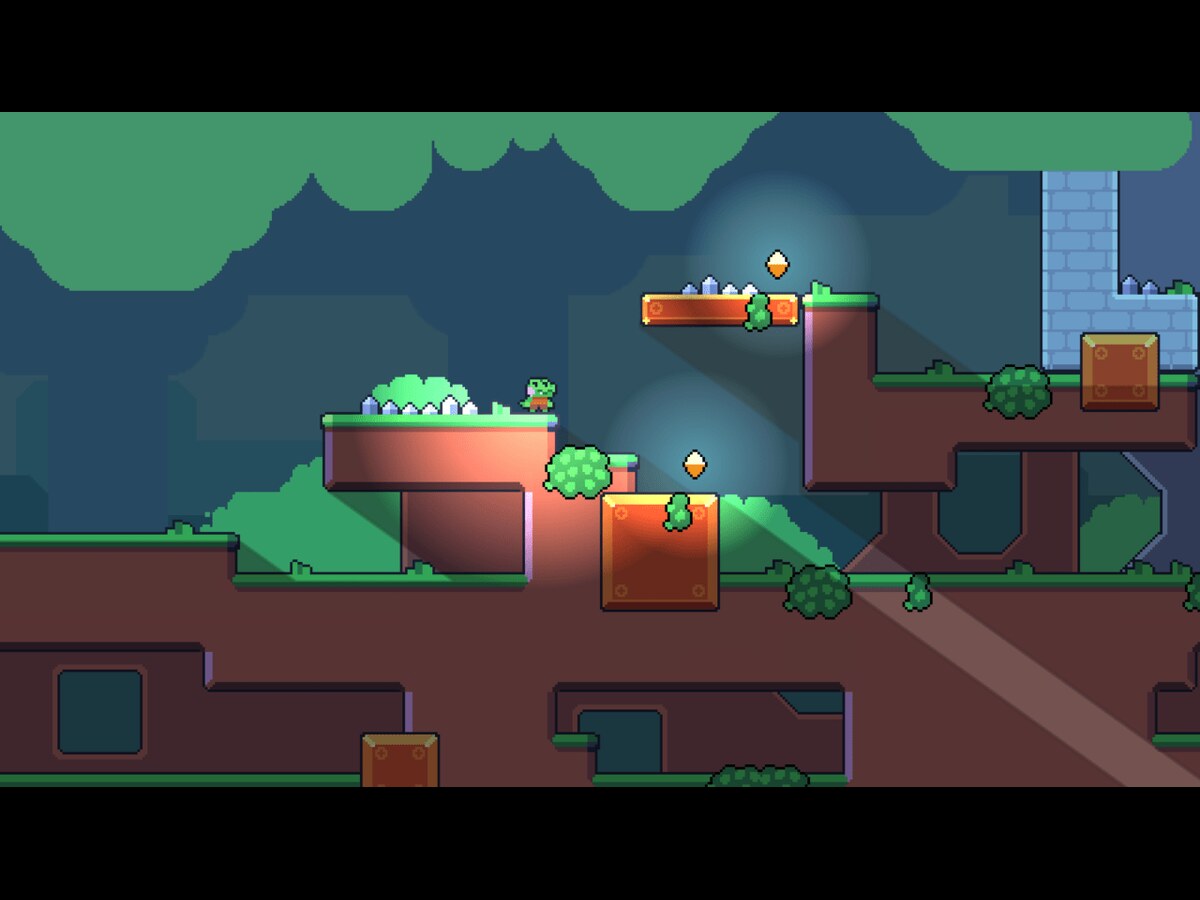
By the end of this guide, you will have a playable character that can move, jump, collide with platforms, and interact with the game world.
Whether you are completely new to game development or switching from another engine, this step-by-step tutorial will help you understand the core concepts of Godot 4 while building a practical project.
Why Choose Godot 4 for Platformer Games?
Godot 4 has become increasingly popular among indie developers for several reasons:
Free and open-source
No royalties or hidden fees
Excellent 2D rendering system
Beginner-friendly interface
Fast workflow and scripting ( Godot 4 Beginner Platformer Tutorial )
Cross-platform game export
Strong community support
For platformer games specifically, Godot 4 provides built-in physics systems, animation tools, tilemaps, and character controllers that simplify development.
What You Will Build
In this tutorial, you will create:
A playable character
Left and right movement
Jump mechanics
Ground collision
Platforms
Basic level design ( Godot 4 Beginner Platformer Tutorial )
Camera follow system
Simple animations
This project serves as an excellent foundation for creating more advanced platformer games later.
Step 1: Install Godot 4
First, download and install Godot 4 from the official website.
After installation:
Launch Godot.
Click New Project.
Name your project.
Select a folder.
Choose the Renderer.
Click Create & Edit.
You now have a fresh Godot 4 project ready for development.
Step 2: Understand the Godot Interface
Before building your platformer, familiarize yourself with the main sections:
Scene Panel
Contains all nodes used in your scene.
Inspector
Displays properties of selected nodes.
FileSystem
Shows project assets such as sprites, scripts, and audio files.
Viewport
The area where you design and test your game ( Godot 4 Beginner Platformer Tutorial ).
Understanding these sections will make development much easier.
Step 3: Create the Main Scene
Every Godot game starts with a main scene.
Create a New Scene
Click Scene → New Scene.
Add a Node2D node.
Rename it to Main.
Save the scene as:
Main.tscn
This will serve as your game level.
Step 4: Create the Player Character
Now let's create the player.
Add CharacterBody2D
Create a new scene.
Add CharacterBody2D.
Rename it, Player.
CharacterBody2D is designed specifically for player movement in Godot 4.
Add CollisionShape2D
Your character needs collision.
Right-click Player.
Add CollisionShape2D.
Select RectangleShape2D.
Adjust size.
This prevents the player from falling through objects.
Add Sprite2D
Now add visuals.
Add Sprite2D.
Assign a character sprite ( Godot 4 Beginner Platformer Tutorial ).
Position it correctly.
The player now has a visible appearance.
Step 5: Add Player Movement Script
Attach a new script to Player.
extends CharacterBody2D
const SPEED = 250.0
func _physics_process(delta):
var direction = Input.get_axis("ui_left", "ui_right")
if direction:
velocity.x = direction * SPEED
else:
velocity.x = move_toward(velocity.x, 0, SPEED)
move_and_slide()
This allows horizontal movement.
Understanding the Script
SPEED
Controls movement speed.
const SPEED = 250.0
Input Axis
Checks keyboard input.
Input.get_axis("ui_left", "ui_right")
Velocity
Moves the character left or right.
move_and_slide()
Handles movement and collision automatically.
Step 6: Add Gravity
Platformer characters need gravity.
Update your script:
extends CharacterBody2D
const SPEED = 250.0
func _physics_process(delta):
if not is_on_floor():
velocity += get_gravity() * delta
var direction = Input.get_axis("ui_left", "ui_right")
if direction:
velocity.x = direction * SPEED
else:
velocity.x = move_toward(velocity.x, 0, SPEED)
move_and_slide()
Now the player falls naturally.
Step 7: Add Jumping
Jumping is one of the most important platformer mechanics.
Add:
const JUMP_VELOCITY = -450.0
Then:
if Input.is_action_just_pressed("ui_accept") and is_on_floor():
velocity.y = JUMP_VELOCITY
Complete script:
extends CharacterBody2D
const SPEED = 250.0
const JUMP_VELOCITY = -450.0
func _physics_process(delta):
if not is_on_floor():
velocity += get_gravity() * delta
if Input.is_action_just_pressed("ui_accept") and is_on_floor():
velocity.y = JUMP_VELOCITY
var direction = Input.get_axis("ui_left", "ui_right")
if direction:
velocity.x = direction * SPEED
else:
velocity.x = move_toward(velocity.x, 0, SPEED)
move_and_slide()
Your player can now move and jump.
Step 8: Create the Ground
Without ground, the player will fall forever.
Add StaticBody2D
Inside the main scene:
Add StaticBody2D.
Rename Ground.
Add Collision
Add CollisionShape2D.
Use RectangleShape2D ( Godot 4 Beginner Platformer Tutorial ).
Add Visuals
Add Sprite2D or ColorRect.
Resize the ground.
Now your character can stand on a platform.
Step 9: Add Platforms
Platformers require multiple platforms.
Create additional StaticBody2D nodes.
Examples:
* Small floating platform
* Large platform
* Moving platform
* Elevated platform
Arrange them throughout the level.
This creates jumping challenges for players.
Step 10: Add a Camera
Following the player improves gameplay.
Inside Player:
Add Camera2D.
Enable:
Current = On
Now the camera automatically follows the character.
Step 11: Create Player Animations
Animations make your game feel professional.
Add:
AnimatedSprite2D
Animation frames
Create animations:
Idle
Run
Jump
Animation Script
if direction != 0:
animated_sprite.play("run")
else:
animated_sprite.play("idle")
For jumping:
if not is_on_floor():
animated_sprite.play("jump")
Your character now feels alive and responsive.
Step 12: Flip Character Direction
When moving left, the sprite should face left.
if direction > 0:
animated_sprite.flip_h = false
elif direction < 0:
animated_sprite.flip_h = true
This small feature greatly improves presentation.
Step 13: Organize Your Project
A professional structure keeps projects manageable.
Recommended folders:
ScenesScriptsSpritesAudioAnimationsUILevelsProper organization saves time as your game grows.
Step 14: Create a Basic Level
Design your first level using:
Ground platforms
Floating platforms ( Godot 4 Beginner Platformer Tutorial )
Jump challenges
Collectibles
Hazards
Focus on fun movement and progression.
Good platformer levels gradually teach mechanics.
Step 15: Add Coins
Collectibles encourage exploration.
Create:
Area2D
CollisionShape2D
Sprite2D
Detect collection:
func _on_body_entered(body):
queue_free()
When the player touches the coin, it disappears.
Step 16: Add Hazards
Hazards create a challenge.
Examples:
Spikes
Lava
Falling objects
Create an Area2D.
When touched:
func _on_body_entered(body):
get_tree().reload_current_scene()
The level restarts after touching the hazard.
Step 17: Add a Goal Area
Every level needs an objective.
Create:
- Area2D
- CollisionShape2D
When reached:
print("Level Complete")Later, you can load the next level automatically.
Step 18: Improve Movement Feel
Professional platformers use polish techniques.
Examples:
Coyote Time
Allows jumping shortly after leaving a platform.
Jump Buffering
Stores jump in before landing ( Godot 4 Beginner Platformer Tutorial ).
Variable Jump Height
Long press = higher jump.
Short press = smaller jump.
These features significantly improve player experience.
Step 19: Test Your Game
Before exporting:
Check collisions
Test jumping
Verify animations
Find bugs
Improve controls
Play repeatedly and refine mechanics.
Game feel matters more than visuals.
Step 20: Export Your Platformer
Godot supports:
Windows
Linux
Android
macOS
Web
Open:
Project → Export
Choose your target platform and generate the build.
Common Beginner Mistakes
Avoid these issues:
Poor Collision Setup
Incorrect collision shapes cause bugs.
Unorganized Files
Messy projects become difficult to manage.
Overcomplicated Scripts
Keep systems simple initially ( Godot 4 Beginner Platformer Tutorial ).
Ignoring Testing
Frequent testing prevents major issues later.
FAQ (Frequently Asked Questions)
What is Godot 4, and why is it ideal for beginner platformer games?
Godot 4 is a free, open-source game engine designed for creating both 2D and 3D games.
It includes an intuitive editor, a lightweight workflow, and the easy-to-learn GDScript programming language ( Godot 4 Beginner Platformer Tutorial ).
For beginners, Godot 4 simplifies platformer development with built-in physics, animation tools, tilemaps, and scene-based architecture, making it an excellent choice for learning game development from scratch.
Can I create a complete 2D platformer game in Godot 4 without prior experience?
Yes. Even if you have no programming or game development experience, you can build a complete 2D platformer in Godot 4 by following a step-by-step tutorial.
Start with character movement, add jumping mechanics, create levels using TileMaps, implement enemy AI, and finish with collectibles, UI, sound effects, and level transitions.
What programming language does Godot 4 use for platformer games?
Godot 4 primarily uses GDScript, a Python-like scripting language that is beginner-friendly and easy to understand.
It also supports C#, C++, and VisualScript alternatives ( Godot 4 Beginner Platformer Tutorial ).
Most beginner platformer tutorials use GDScript because it integrates seamlessly with the Godot editor and allows developers to create gameplay mechanics quickly.
What are the essential features every beginner platformer game should include?
A basic Godot 4 platformer should include smooth player movement, jumping, gravity, collision detection, animated characters, enemies, collectibles, checkpoints, health, UI elements, sound effects, and level completion logic.
These features provide a solid foundation while helping beginners understand the core principles of 2D game development ( Godot 4 Beginner Platformer Tutorial ).
How do I create player movement in a Godot 4 platformer?
Player movement is implemented using the CharacterBody2D node in combination with GDScript.
You define horizontal movement, gravity, jumping, and collision handling inside the physics process.
Godot 4 provides built-in movement functions that simplify responsive platformer controls and reduce the amount of code beginners need to write.
How can I add animations to my Godot 4 platformer character?
You can animate your character using the AnimatedSprite2D or AnimationPlayer node ( Godot 4 Beginner Platformer Tutorial ).
Create animations such as idle, run, jump, fall, and attack, then switch between them based on the player's current state.
This improves gameplay feedback and makes your platformer feel polished and engaging.
Is Godot 4 better than Unity for beginner platformer development?
Godot 4 is often considered easier for beginners because it is lightweight, open-source, and offers a simpler workflow.
Unity offers a larger ecosystem and more advanced tools, but has a steeper learning curve.
For learning 2D platformer development, many beginners find Godot 4 more approachable.
Conclusion
Building your first 2D game may seem challenging at the beginning, but this Godot 4 Beginner Platformer Tutorial (Step-by-Step Guide) proves that anyone can create a fun and polished platformer with the right approach.
By learning the fundamentals of player movement, jumping mechanics, collision detection, animations, TileMaps, enemy AI, collectibles, and level design, you've established a strong foundation for future game development projects.
The key to improving is consistent practice and experimentation.
As you become more comfortable with Godot 4, try expanding your platformer with new features such as checkpoints, power-ups, save systems, particle effects, advanced enemy behaviors, and custom UI elements.
Each addition will strengthen your understanding of game design and programming while making your project more engaging.
Whether your goal is to build games as a hobby, publish an indie title, or start a career in game development, following this Godot 4 Beginner Platformer Tutorial (Step-by-Step Guide) is an excellent first step.
Keep learning, keep building, and don't be afraid to experiment. Every project you complete brings you closer to becoming a skilled Godot game developer.