
Introduction
Creating a 3D game can seem complicated when you are just starting. Still, Godot makes the process much easier by providing a complete game development environment with tools for scenes, scripting, physics, animation, lighting, audio, and UI.
Godot is a free and open-source game engine that supports both 2D and 3D development ( how to make a 3d game in godot ).
If you have been wondering how to make a 3d game in Godot, this guide will walk you through the complete process, from creating your first project to building a playable 3D prototype.
You do not need to start with an advanced open-world game. A small 3D platformer, survival game, shooting game, or exploration game is a much better first project.
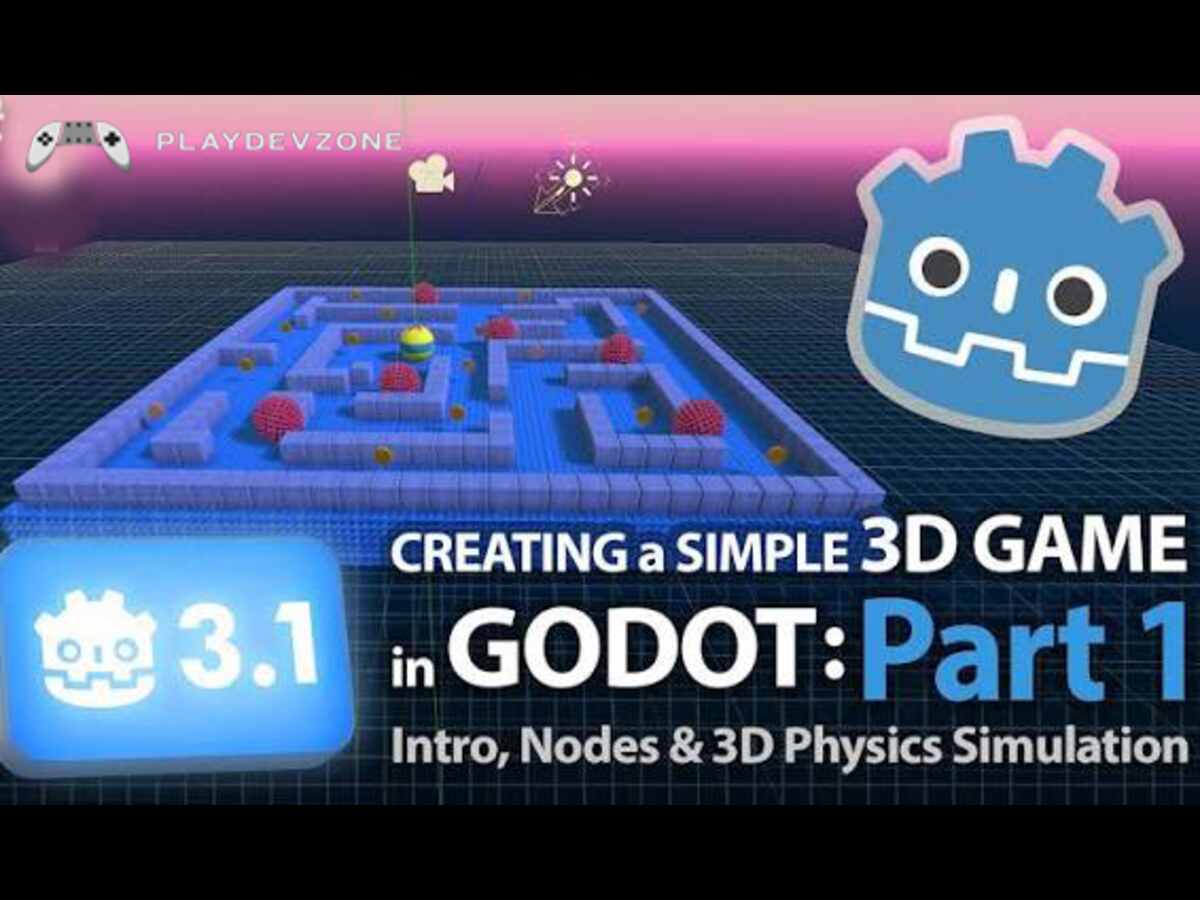
Godot's official beginner tutorial follows a similar approach by teaching players how to create a complete small 3D game with movement, jumping, enemies, collisions, animation, scoring, and a replay system.
What You Need Before Starting
Before learning how to make a 3d game in Godot, you should have a few basic things ready:
- A Windows, Linux, or macOS computer
- Godot Engine 4.x
- Basic programming knowledge
- A basic understanding of 3D coordinates
- A text editor, although Godot's built-in script editor is enough
- Some free time for experimenting
You do not need professional 3D modeling skills. You can begin with primitive shapes such as cubes, spheres, capsules, and cylinders and replace them with detailed models later.
Godot's current stable documentation is based on the Godot 4.7 branch, while its latest documentation may describe development features that are not necessarily part of the stable release.
For a new project, it is therefore sensible to follow documentation matching the Godot version you actually installed.
1. Create a New Godot Project
The first step in learning how to make a 3D game in Godot is to create a project.
Open Godot and select Create or Create New Project. Enter a project name such as:
MyFirst3DGame
Choose a location where you want Godot to save your project.
For a beginner project, you can use the default renderer recommended by your installed Godot version. Once the project opens, you will see the Godot editor.
The editor contains several important areas:
- Scene dock
- FileSystem dock
- Inspector
- 3D viewport
- Script editor ( how to make a 3d game in godot )
- Toolbar
- Output and Debug panels
Spend a few minutes exploring these areas before writing code.
Understanding the editor will save you considerable time later.
2. Understand Godot’s 3D Scene System
One of the most important concepts in Godot is the scene system.
A scene is essentially a reusable collection of nodes. A complete game can contain many scenes, such as:
- Main level
- Player
- Enemy
- Weapon
- Menu
- Game-over screen ( how to make a 3d game in godot )
- Settings screen
For example, your main scene could have a structure like this:
Main
├── WorldEnvironment
├── DirectionalLight3D
├── Camera3D
├── Player
├── Ground
└── Enemies
The root of a basic 3D scene is commonly a Node3D. Godot's 3D system uses nodes and scenes to organize game objects, which makes it easier to build reusable components.
If you understand scenes and nodes early, learning how to make a 3d game in Godot becomes much easier because every part of your game can be separated into manageable pieces.
3. Build Your First 3D Environment
Now create a basic environment.
Create a new scene and add a Node3D as the root node. Rename it:
Main
Next, add a ground object.
For a simple prototype, you can use:
MeshInstance3D
Then assign a BoxMesh to the mesh property.
Increase its size so that it becomes a floor.
You can create something like:
Main
└── Ground
A primitive cube is enough at this stage.
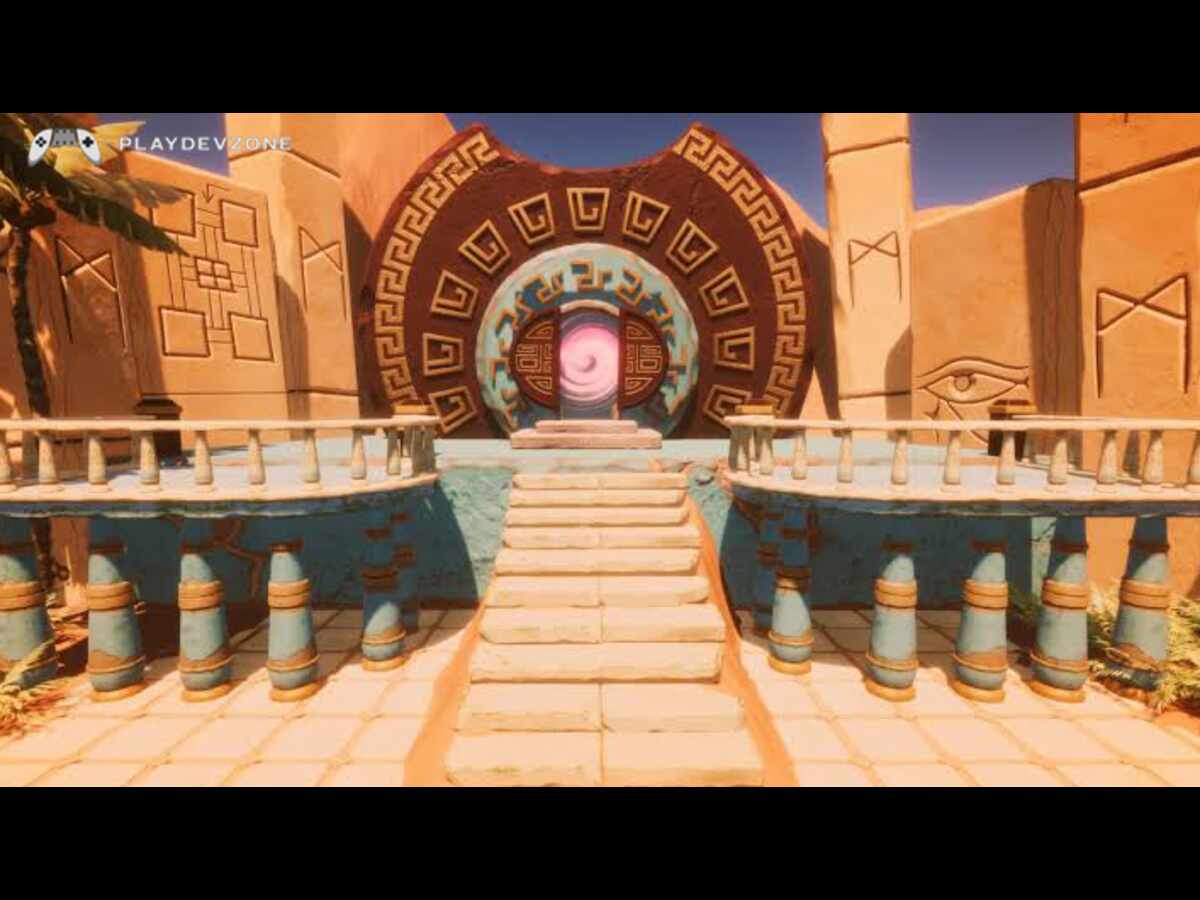
Do not spend hours creating beautiful environments before your gameplay works.
Professional game development usually starts with prototypes and gradually replaces placeholder objects with final assets.
4. Add Lighting
Without lighting, your 3D environment may appear dark or visually flat.
Add a:
DirectionalLight3D
This type of light is useful for creating a sun-like lighting effect.
You can adjust:
- Rotation
- Energy ( how to make a 3d game in godot )
- Shadow settings
- Light color
You can also add a WorldEnvironment node to control the overall environment, background, ambient lighting, and other visual effects.
Godot provides dedicated 3D rendering features for lighting, shadows, environment effects, particles, global illumination, and post-processing.
For your first game, keep the lighting simple. Good gameplay is more important than advanced graphics.
5. Create the Player
The player is the most important interactive object in many 3D games.
For a controllable character, Godot provides CharacterBody3D, which is specifically designed for characters controlled through scripts.
It provides movement and collision functionality such as move_and_slide().
Create:
CharacterBody3D
Rename it:
Player
Then add child nodes such as:
Player
├── CollisionShape3D
├── MeshInstance3D
└── Camera3D
The CollisionShape3D gives your player a physical shape.
For example, you could use a capsule shape.
The MeshInstance3D displays the player's visible model.
The camera allows the player to see the game world.
6. Set Up Player Input
A major part of learning how to make a 3d game in godot is understanding input.
Instead of hard-coding keyboard keys directly into your movement script, Godot provides the Input Map system.
Open:
Project → Project Settings → Input Map
Create actions such as:
move_forward
move_back
move_left
move_right
jump
You can then assign keyboard keys or controller buttons to these actions.
Godot's official documentation recommends named input actions because they allow multiple keys or controller inputs to be assigned to the same action.
For example:
move_forward → W
move_back → S
move_left → A
move_right → D
jump → Space
You could also add controller support later.
7. Write the Player Movement Script
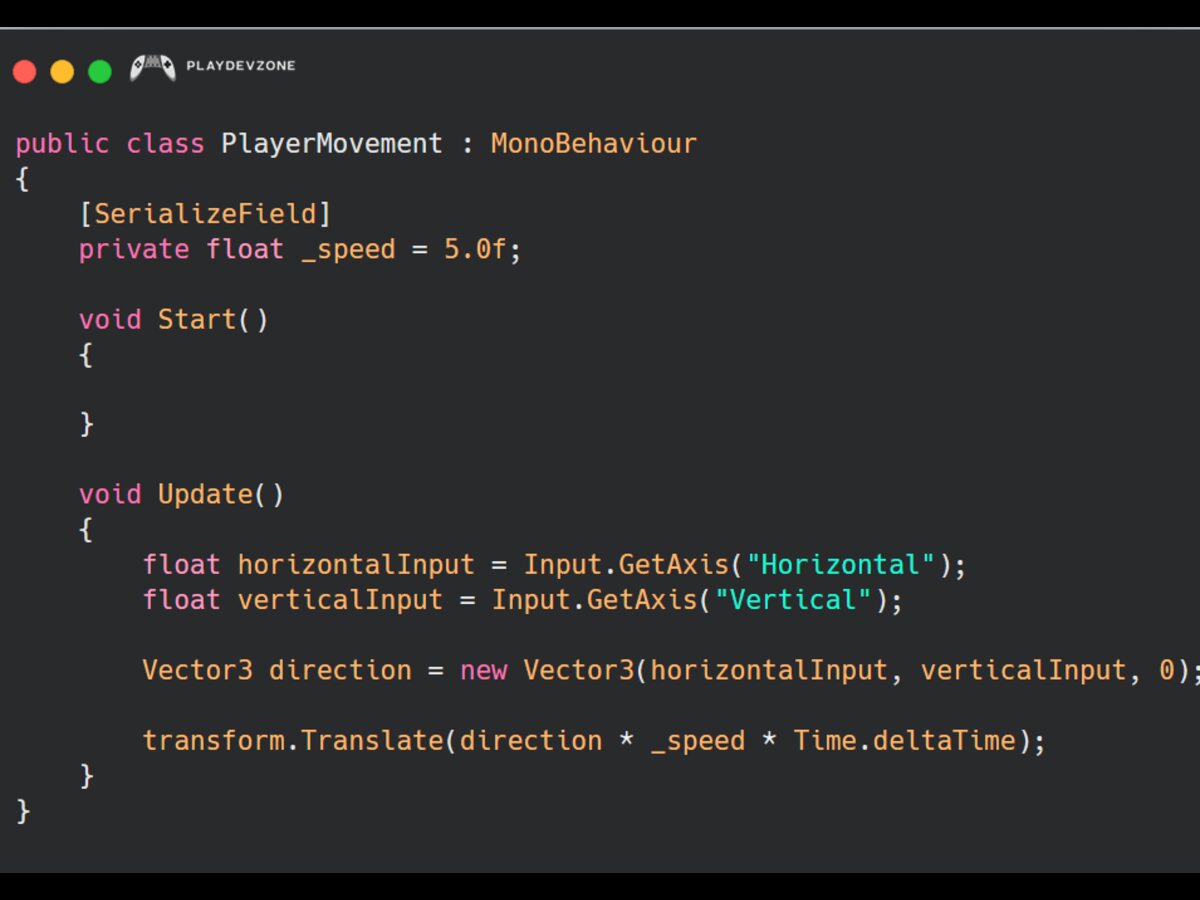
Attach a GDScript to your Player node.
A simple starting point might look like this:
extends CharacterBody3D
@export var speed := 5.0
@export var jump_velocity := 5.0
var gravity := 9.8
func _physics_process(delta):
if not is_on_floor():
velocity.y -= gravity * delta
var input_vector = Input.get_vector(
"move_left",
"move_right",
"move_forward",
"move_back"
)
var direction = Vector3(
input_vector.x,
0,
input_vector.y
)
velocity.x = direction.x * speed
velocity.z = direction.z * speed
if Input.is_action_just_pressed("jump") and is_on_floor():
velocity.y = jump_velocity
move_and_slide()
This provides a basic foundation for player movement.
The exact movement system you use will depend on whether you are creating a first-person game, third-person game, platformer, or another type of 3D experience ( how to make a 3d game in godot ).
Godot's official first-3D-game tutorial also uses CharacterBody3D and custom input actions when building the player.
8. Add a Camera
A 3D game needs a camera to display the world.
For a simple third-person game, create:
Camera3D
as a child of the player or a camera rig.
You can position it behind and above the character.
For example:
Player
├── CollisionShape3D
├── MeshInstance3D
└── Camera3D
For more advanced third-person movement, you can create a camera rig with a spring arm.
For a first-person game, position the camera near the player's head.
The camera setup should match your game genre.
9. Add Materials and Models
Once the basic gameplay works, improve the appearance.
A MeshInstance3D can use a material to change its appearance.
You can create a:
StandardMaterial3D
and adjust properties such as:
- Base color
- Metallic
- Roughness
- Transparency
- Emission
You can also import external 3D models created in software such as Blender.
However, beginners should avoid filling their first project with hundreds of high-resolution assets.
Start with simple objects and concentrate on gameplay.
10. Add Collision Detection
Collision is essential for a playable 3D game.
Your player needs a CollisionShape3D, while floors, walls, and obstacles need appropriate collision shapes.
A basic level might look like:
Main
├── Ground
├── Wall
├── Player
└── Obstacle
Make sure each physical object has the appropriate collision setup.
If the player falls through the floor, the problem is usually related to collision shapes, collision layers, collision masks, or physics configuration.
Understanding collision early will help you troubleshoot many common Godot problems.
11. Add Enemies
Once your player can move, create an enemy.
Create another scene:
Enemy.tscn
A simple enemy structure might be:
Enemy
├── MeshInstance3D
├── CollisionShape3D
└── Area3D
You can later create an enemy script that follows the player.
For a basic prototype, the enemy could move toward the player at a constant speed.
More advanced games can use navigation systems to allow enemies to move around obstacles.
Godot's 3D documentation includes topics for navigation, physics, rendering, animation, and other systems needed for larger projects.
12. Add Health and Damage
Most action games need a health system.
You can create a variable:
var health := 100
Then create a function:
func take_damage(amount):
health -= amount
if health <= 0:
die()
Your die() function could trigger an animation, reload the level, show a game-over screen, or perform another action.
This simple system can later become much more advanced.
For example:
- Armor
- Shields
- Critical hits
- Regeneration
- Enemy damage ( how to make a 3d game in godot )
- Environmental damage
- Health pickups
13. Add Collectibles and Scoring
Collectibles are an easy way to make a prototype more interesting.
You could create:
- Coins
- Gems
- Keys
- Power-ups
- Health items
When the player touches an item, increase the score.
For example:
var score := 0
func collect_item():
score += 10
You can then display the score using a Label node.
This introduces another important concept: connecting gameplay logic to the user interface.
14. Create a Simple UI
A game without useful feedback can feel unfinished.
Godot's UI system allows you to create:
- Health bars
- Score counters
- Menus
- Buttons
- Pause screens
- Game-over screens
- Crosshairs
- Inventory panels
For example:
CanvasLayer
└── Control
├── Label
├── ProgressBar
└── Button
A CanvasLayer is useful for keeping UI elements independent of the 3D camera.
The official Godot first-3D-game tutorial also introduces UI as part of its complete project workflow.
15. Add Sound Effects and Music
Audio can dramatically improve a basic 3D game.
Add sound effects for:
- Jumping
- Shooting
- Collecting items
- Taking damage
- Enemy attacks
- Button clicks
You can use Godot's audio nodes to play sound effects and background music.
Keep audio organized rather than placing dozens of audio files randomly throughout the project.
A simple structure could be:
Audio
├── Music
├── Player
├── Enemy
└── UI
16. Add Animations
If your player is represented by a character model, animation makes the game feel much more polished.
Common animations include:
- Idle
- Walk
- Run
- Jump
- Fall
- Attack
- Death
Godot provides animation tools that can be used for characters, objects, UI elements, and gameplay events.
You can also change animation speed based on player movement.
This is one of the concepts covered in Godot's official first 3D game tutorial.
17. Create Your Game Loop
A complete game needs a gameplay loop.
For example, a simple survival game could work like this:
Start Game
↓
Player Moves
↓
Enemies Spawn
↓
Player Attacks
↓
Enemy Defeated
↓
Score Increases
↓
More Enemies
↓
Player Dies
↓
Game Over
↓
Restart
This is more important than having extremely detailed graphics.
If your gameplay loop is fun with simple cubes and placeholder models, you have a strong foundation for a larger project.
18. Organize Your Godot Project
Good organization becomes increasingly important as your game grows.
A useful folder structure might be:
res://
├── scenes/
│ ├── player/
│ ├── enemies/
│ ├── levels/
│ └── ui/
├── scripts/
│ ├── player/
│ ├── enemies/
│ └── systems/
├── assets/
│ ├── models/
│ ├── textures/
│ └── audio/
└── materials/
The exact structure is up to you.
The important thing is to keep related files together and use clear names.
Good organization makes debugging and future updates much easier.
19. Test Your Game Frequently
Do not wait until your entire game is finished before testing it.
Run the project after every major feature.
Test:
- Player movement
- Jumping
- Camera
- Collisions
- Enemies
- Health
- UI
- Audio
- Level transitions
- Game-over logic
When something breaks, check the Godot Output and Debug panels.
Fix one problem at a time.
This is one of the most important habits for anyone learning how to make a 3d game in Godot.
20. Optimize Your 3D Game
After your prototype works, start thinking about performance.
3D games can become demanding when they contain:
- High-poly models
- Large textures
- Many dynamic lights
- Complex shaders
- Large numbers of enemies
- Excessive particles
- Huge environments
Godot provides several 3D optimization techniques, including visibility ranges, occlusion culling, resolution scaling, LOD, and MultiMeshInstance3D.
For a beginner project, start with practical optimizations:
- Use reasonable texture sizes.
- Avoid unnecessary objects.
- Reduce expensive effects.
- Reuse assets.
- Test on your target hardware.
- Keep scripts efficient.
Do not optimize everything prematurely. First make the game work, then identify actual performance problems.
21. Export Your Godot Game
Once your game is finished, you can export it for your target platform.
Possible targets depend on your Godot version and project requirements, but Godot supports development for multiple platforms.
Before exporting, check:
- Project name
- Window resolution
- Input settings
- Main scene
- Rendering settings
- Assets
- Application icon
- Platform-specific settings
Always test the exported build instead of assuming it will behave exactly like the editor version.
Beginner Game Ideas for Godot
Now that you understand the basic workflow, choose a small project.
Good beginner projects include:
1. 3D Platformer
Create platforms, obstacles, collectibles, and a goal.
2. First-Person Shooter
Build a small level with a player, weapon, enemies, and a health system.
3. 3D Survival Game
Add resource collection, enemies, health, and a day/night system.
4. 3D Racing Game
Create a simple track, vehicle controller, checkpoints, and lap system.
5. 3D Horror Game
Build a small environment with lighting, audio, exploration, and an enemy.
The best beginner project is one you can realistically finish.
Common Mistakes Beginners Make
When learning how to make a 3d game in Godot, avoid these common mistakes.
Starting Too Big
Do not start with an MMO or massive open-world RPG.
Build a small prototype first.
Focusing Only on Graphics
Beautiful graphics cannot save boring gameplay.
Make movement and interaction fun first ( how to make a 3d game in godot ).
Using Too Many Assets
Too many assets can make your project difficult to organize and optimize.
Ignoring Input Actions
Use the Input Map instead of hard-coding every key.
Not Testing Frequently
Frequent testing makes bugs easier to identify.
Copying Code Without Understanding It
You can use examples, but try to understand what every important section does.
Godot's official step-by-step learning material covers nodes, scenes, scripting, input, and signals before moving into complete game projects, making it a useful learning path for beginners.
How Long Does It Take to Make a 3D Game?
A basic 3D prototype can potentially be created in days or weeks.
A polished commercial game may take months or years.
Your development time depends on:
Team size
Game genre
Art requirements
Programming complexity
Number of levels
Audio
Animation
Multiplayer features
Optimization
Testing
For your first game, focus on completing a small project rather than trying to build a huge commercial title.
Final Tips for Learning Godot 3D
If you are serious about learning how to make a 3d game in Godot, follow this progression:
- Learn Godot's editor.
- Understand nodes and scenes.
- Learn basic GDScript ( how to make a 3d game in godot ).
- Create a 3D environment.
- Add a player.
- Configure Input Map.
- Implement movement.
- Add collisions.
- Add enemies.
- Add UI.
- Add audio.
- Add animations.
- Create a gameplay loop.
- Test regularly.
- Optimize.
- Export your game.
Do not try to master every Godot feature before making your first game. Learn each system when your project needs it.
Frequently Asked Questions
Is Godot good for making 3D games?
Yes. Godot is a complete open-source game engine with dedicated 3D tools for rendering, physics, animation, navigation, lighting, UI, and optimization.
Is Godot 3D difficult for beginners?
It can be more challenging than 2D because 3D introduces additional concepts such as depth, cameras, transforms, lighting, and 3D physics.
However, Godot's official documentation provides a complete first-3D-game tutorial designed to introduce these concepts progressively.
Do I need to know programming to make a Godot 3D game?
Basic programming knowledge is very helpful. You can start with simple GDScript and gradually learn variables, functions, conditions, loops, signals, and object-oriented concepts ( how to make a 3d game in godot ).
What programming language does Godot use?
Godot primarily supports GDScript and also provides C# support.
The official documentation includes examples in both languages.
Can I make a 3D game without creating my own models?
Yes. You can start with primitive shapes and use existing compatible 3D assets.
For your first project, placeholder models are often enough while you develop gameplay.
Can Godot make first-person games?
Yes. Godot provides the nodes and systems needed to build first-person games, including 3D cameras, character controllers, physics, input handling, animation, audio, and UI.
Is Godot free?
Godot is a free and open-source game engine, so you can use it for game development without paying an engine licensing fee ( how to make a 3d game in godot ).
What should I make as my first 3D Godot game?
A small platformer, survival game, exploration game, or simple shooter is a good choice.
Keep the first project small enough to finish.
Conclusion
Learning how to make a 3d game in Godot is much easier when you break game development into small systems instead of trying to create everything at once.
Start with a simple scene, add a player, configure input, implement movement, create a basic environment, and then gradually introduce enemies, UI, audio, animation, and other features.
Godot's official learning resources follow this same practical approach: learn the fundamentals, create a small project, and then expand your skills into more advanced 3D development ( how to make a 3d game in godot ).
The most important goal for your first project is not creating a huge or visually impressive game. It is finishing a playable game.
Once you complete one small 3D project, the concepts you learned can become the foundation for much larger Godot games.