
Introduction
Creating a polished game experience in Unity starts with a clean and responsive user interface.
In this Unity UI tutorial, you’ll learn how to design and implement essential UI elements such as a health bar, score system, and interactive menus using Unity’s built-in UI tools.
Whether you’re a beginner or an indie developer refining your skills, this guide walks you through best practices for building flexible, scalable, and user-friendly interfaces (Unity UI).
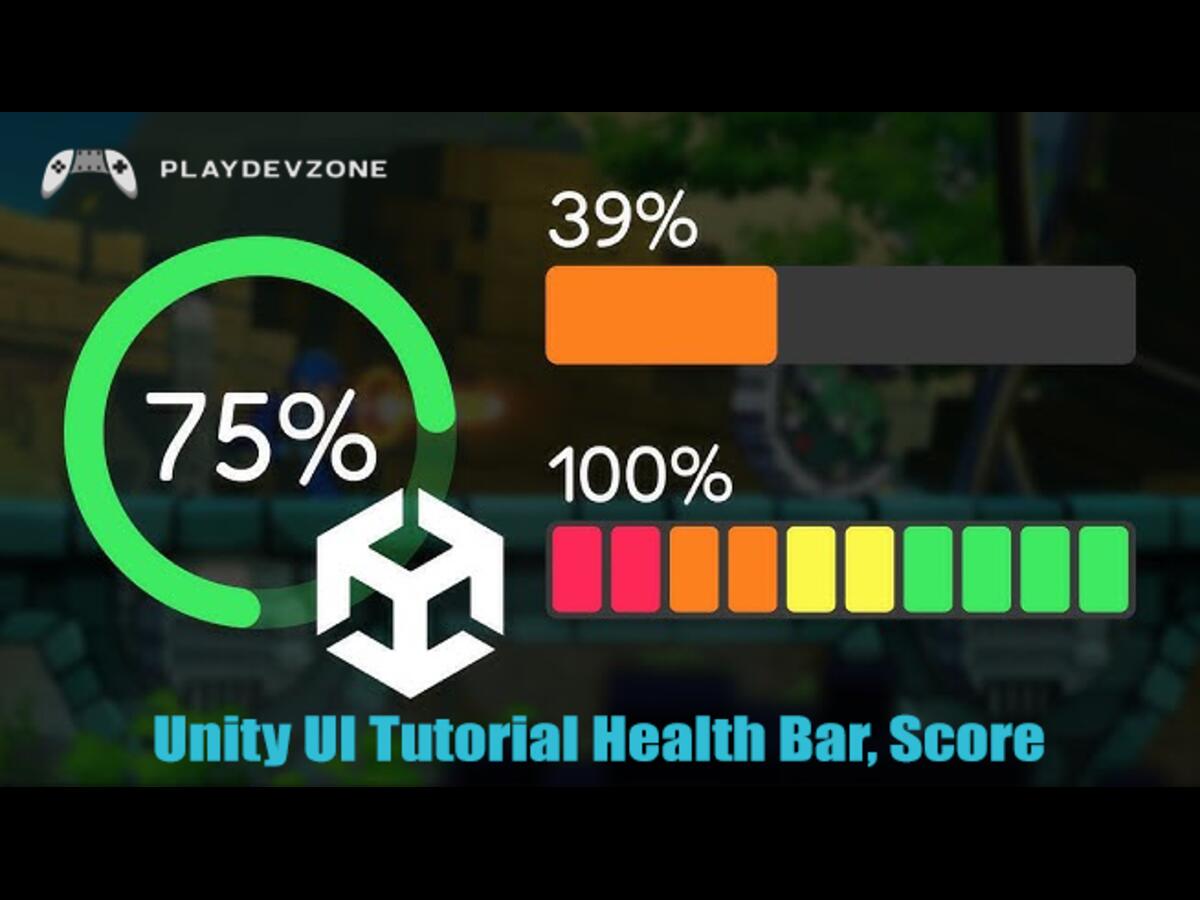
We’ll cover Canvas setup, UI images and text, sliders for health bars, real-time score updates, and menu navigation that works across different screen sizes.
By the end of this tutorial, you’ll be able to create a professional-looking game UI that improves gameplay clarity and player engagement (Unity UI).
If you want to make your Unity games more interactive, readable, and visually appealing, this step-by-step Unity UI guide is the perfect place to start.
Setting Up Unity UI Canvas
Setting up the Unity UI Canvas is the foundation of creating precise and responsive game interfaces.
The Canvas acts as a container that holds all UI elements such as health bars, score text, buttons, and menus (Unity UI).
When configuring the Canvas, it’s essential to choose the correct Render Mode: Screen Space Overlay, Screen Space Camera, or World Space, based on your game’s needs.
Using the Canvas Scaler helps ensure your UI looks consistent across different screen sizes and resolutions.
Setting the scale mode to Scale With Screen Size and defining a reference resolution improves responsiveness on both mobile and desktop devices.
A well-structured Unity UI Canvas not only enhances visual clarity but also improves performance and user experience, making your game feel more professional and polished.
Creating a Health Bar in Unity
Creating a health bar in Unity is an essential part of building an engaging and user-friendly game interface.
A health bar visually represents the player’s current health, helping users quickly understand their game status. In Unity, health bars are commonly created using UI Images or Sliders inside a Canvas.
By adjusting the Image Fill Method or Slider value, you can smoothly update the health bar in real time through a simple C# script (Unity UI).
Adding animations or color changes as health decreases can further improve player feedback. Proper anchoring and scaling ensure the health bar looks consistent across different screen sizes.
A well-designed Unity health bar not only improves gameplay clarity but also enhances immersion and overall player experience.
Designing a Score System
Designing a score system in Unity plays a vital role in keeping players motivated and engaged.
A transparent and responsive score display helps players track their progress and rewards their actions in real time. In Unity, score systems are usually created using Text or TextMeshPro UI elements placed inside a Canvas.
Using clean fonts, proper alignment, and readable sizes ensures the score remains visible without distracting from gameplay (Unity UI).
A well-designed score system not only improves user experience but also adds a sense of achievement and competitiveness to your game.
Building Game Menus in Unity
Creating game menus in Unity is a crucial step in delivering a seamless and polished player experience.
Select 76 more words to run Humanizer.
Menus allow players to navigate your game, start or pause gameplay, adjust settings, and exit scenes easily. In Unity, menus are created using UI elements like Panels, Buttons, Text, and Images inside a Canvas.
Proper use of anchors and layout groups ensures menus remain responsive across different screen sizes (Unity UI).
Well-designed Unity game menus improve usability, guide players intuitively, and give your game a polished look that enhances overall engagement.
Making UI Responsive and Mobile-Friendly
Making UI responsive and mobile-friendly in Unity is essential for delivering a consistent experience across different devices and screen sizes.
A responsive UI automatically adjusts to various resolutions, ensuring that buttons, text, and icons remain readable and accessible (Unity UI).
In Unity, this is achieved by properly using anchors, pivots, and the Canvas Scaler with the Scale With Screen Size option. Layout Groups and Content Size Fitters help maintain alignment and spacing on both mobile and desktop screens.
Testing the UI on multiple aspect ratios prevents overlapping elements and scaling issues.
A well-optimized, mobile-friendly UI improves usability, reduces player frustration, and makes your game feel more professional and polished.
UI Optimization and Best Practices
Following UI optimization and best practices in Unity helps improve game performance while delivering a clean and user-friendly interface.
Optimized UI reduces unnecessary draw calls and ensures smooth gameplay, especially on mobile and low-end devices.
Organizing UI elements into a clear hierarchy, minimizing overdraw, and turning off unused components are key best practices.
Using TextMeshPro instead of standard text improves clarity and performance. Proper Canvas separation for static and dynamic UI elements also enhances efficiency (Unity UI).
Additionally, reusing UI assets and avoiding excessive animations can prevent performance drops.
Applying these Unity UI best practices results in faster loading times, better responsiveness, and a polished visual experience that keeps players engaged.
Common UI Mistakes and How to Fix Them
Avoiding common UI mistakes in Unity is crucial for creating a smooth and enjoyable player experience (Unity UI).
One frequent error is improper scaling, which causes UI elements to appear too large or small on different screen sizes.
To fix this, use anchors and the Canvas Scaler’s Scale With Screen Size option for responsive layouts.
Overlapping UI elements can confuse players, so organizing your UI hierarchy and using layout groups helps maintain clean spacing.
Another common issue is unresponsive buttons or input conflicts, often resolved by checking Event System settings and ensuring UI elements don’t block each other.
Debugging UI interactions regularly and testing on multiple devices ensures your game’s interface remains intuitive and user-friendly (Unity UI).
Implementing these fixes will enhance your Unity UI’s usability and professionalism.
FAQ (Frequently Asked Questions)
How to add health bars in Unity?
Adding health bars in Unity is a straightforward process that enhances player feedback and game immersion (Unity UI).
To create a health bar, start by setting up a Canvas and adding a UI Image or Slider to represent the health visually.
Use the Image’s fill method or the slider value to show the player’s current health status dynamically.
This script should reduce or increase the health bar smoothly when the player takes damage or heals. Properly anchor and scale the health bar within the Canvas to ensure it looks good on different screen sizes.
By following these steps, you’ll create a clear, responsive health bar that improves gameplay clarity and player experience in your Unity game.
How to display a score in Unity?
Displaying a score in Unity is essential for tracking player progress and enhancing game engagement.
To show the score, start by adding a Text or TextMeshPro UI element inside your Canvas. This text element will display the current score on the screen.
Then, create a simple C# script to update the score value dynamically during gameplay, for example, when the player collects points or completes objectives.
The script should modify the text component’s content in real time to reflect the updated score (Unity UI).
Using TextMeshPro is recommended for better clarity and performance.
Additionally, position and style the score display to ensure it is visible but unobtrusive.
By implementing a transparent and responsive score system, you improve player motivation and overall user experience in your Unity game.
How to code main menu in Unity?
Coding a main menu in Unity is a key step to creating a polished game experience. Start by designing your menu using UI elements like Buttons, Panels, and Text inside a Canvas.
Next, write simple C# scripts to handle button interactions, such as starting the game, opening settings, or exiting the application.
Use the SceneManager LoadScene () function to load different game scenes when the player clicks the Start button.
For pause or settings menus, you can toggle UI panels’ visibility with script commands. Make sure to add Event Listeners to your buttons for responsive input.
Properly organizing your menu UI and scripting smooth transitions helps guide players intuitively, enhancing usability and professionalism.
Testing your main menu across devices ensures a consistent and user-friendly interface.
How to create a panel in Unity?
Creating a panel in Unity is a simple yet powerful way to organize your UI elements.
To create a panel, start by adding a Canvas to your scene if you don’t have one already.
Then, right-click inside the Canvas hierarchy and select UI > Panel. This panel acts as a container that can hold buttons, text, images, or other UI components, helping to group related elements together (Unity UI).
You can customize the panel’s size, color, and transparency through the Image component attached to it.
Panels are handy for creating menus, pop-ups, or HUD sections.
Using panels improves UI structure and makes it easier to manage complex interfaces.
Additionally, panels can be shown or hidden through scripts to create dynamic and interactive user experiences in your Unity game.
How to display a score in Unity?
Displaying a score in Unity is essential for keeping players informed and motivated.
To show the score, begin by adding a UI Text or TextMeshPro element inside your Canvas, which will display the numerical value on the screen.
Next, create a simple C# script that updates this text in real-time based on the player’s actions, such as collecting items or achieving objectives.
The script should modify the text property dynamically to reflect the current score.
Using TextMeshPro is recommended for sharper text quality and better performance. Position the score display thoughtfully, ensuring it is visible without obstructing gameplay (Unity UI).
By implementing a transparent and responsive score display, you enhance player engagement and create a more polished gaming experience in Unity.
Conclusion
Mastering the basics of Unity UI by creating a health bar, score display, and interactive menus is crucial for building engaging and professional games.
This Unity UI tutorial has covered how to design responsive and visually appealing UI elements that enhance gameplay clarity and user experience.
Whether you’re updating player health dynamically, tracking scores in real time, or crafting smooth menu navigation, implementing these core components helps your game stand out.
With proper setup and optimization, your UI will be both functional and adaptable across different devices (Unity UI).
By applying these techniques, you’ll create a polished interface that keeps players informed and immersed, making your Unity projects more enjoyable and user-friendly.
Keep experimenting and refining your UI skills to unlock the full potential of your game development journey.